Navigating Facebook Ad Support: Agency Playbook
12/13/2025

Every agency that scales on Meta eventually runs into a roadblock, a disabled ad account, stuck-in-review ads, billing errors, or tracking problems. When spend is paused, the difference between an hour and a day is real money. This playbook shows how to navigate Facebook ad support efficiently, with a practical triage flow, escalation paths, and a permission-first onboarding process that prevents repeat incidents.
How Facebook ad support works in 2025
Meta offers several support avenues, and availability varies by region, account history, and eligibility. Start here, then choose the best path based on the issue type.
- Meta Business Help Center. Use the entry point to search known fixes or open a case if your account is eligible. See Find answers or contact support in the Meta Business Help Center.
- In-product support. Some accounts see chat or email options in Ads Manager or Account Quality. Availability can change over time.
- Account Quality and Review flows. Policy violations, rejections, and restrictions often route through Account Quality. You can request another review there.
- Developer channels. If the problem is strictly technical, for example API, pixel, or Conversions API anomalies, check the Meta Developer Platform Status and, if needed, file an issue in the Developer Support bugs channel.
- Outage checks. When symptoms are widespread across clients, confirm platform health before deep troubleshooting. You can reference Meta Status for major incidents that affect core apps.
Tip for agencies, support will almost always ask for exact asset identifiers and evidence. Have your Business Manager ID, Ad Account ID, Page ID, Pixel ID, and Catalog ID ready.
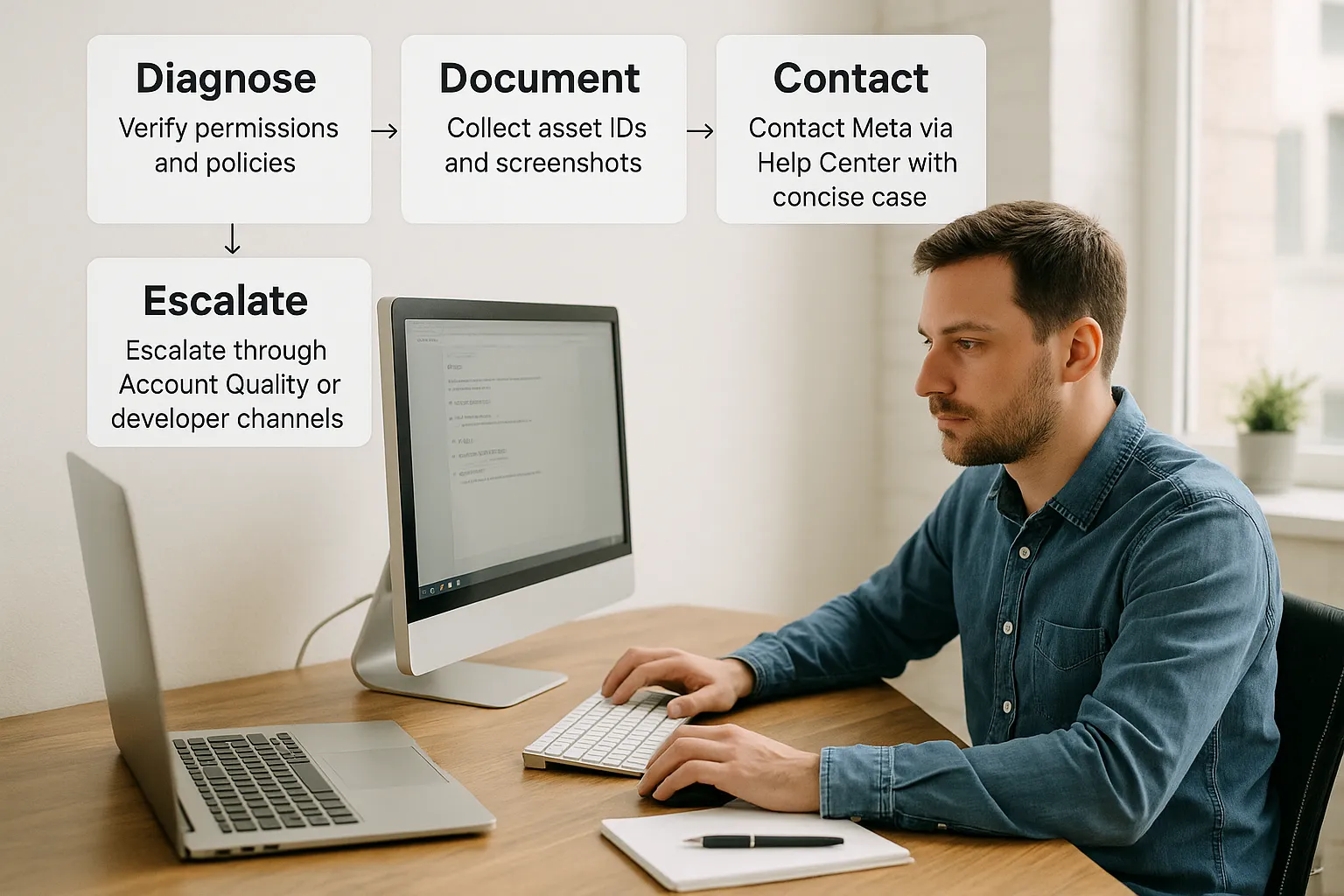
Pre-contact triage checklist
Run through this quick checklist before you contact support. It resolves many issues without a ticket and speeds up answers when you do need one.
1) Confirm access and asset IDs
- Verify you are working from the client’s Business Manager with the right role. For policy or billing questions, admin or at least advanced permissions are often required.
- Gather identifiers, Business Manager ID, Ad Account ID, Page ID, Pixel ID, Catalog ID. Add campaign or ad IDs if the problem is isolated to specific creatives.
- Make sure the ad account has an active payment method and no outstanding balance.
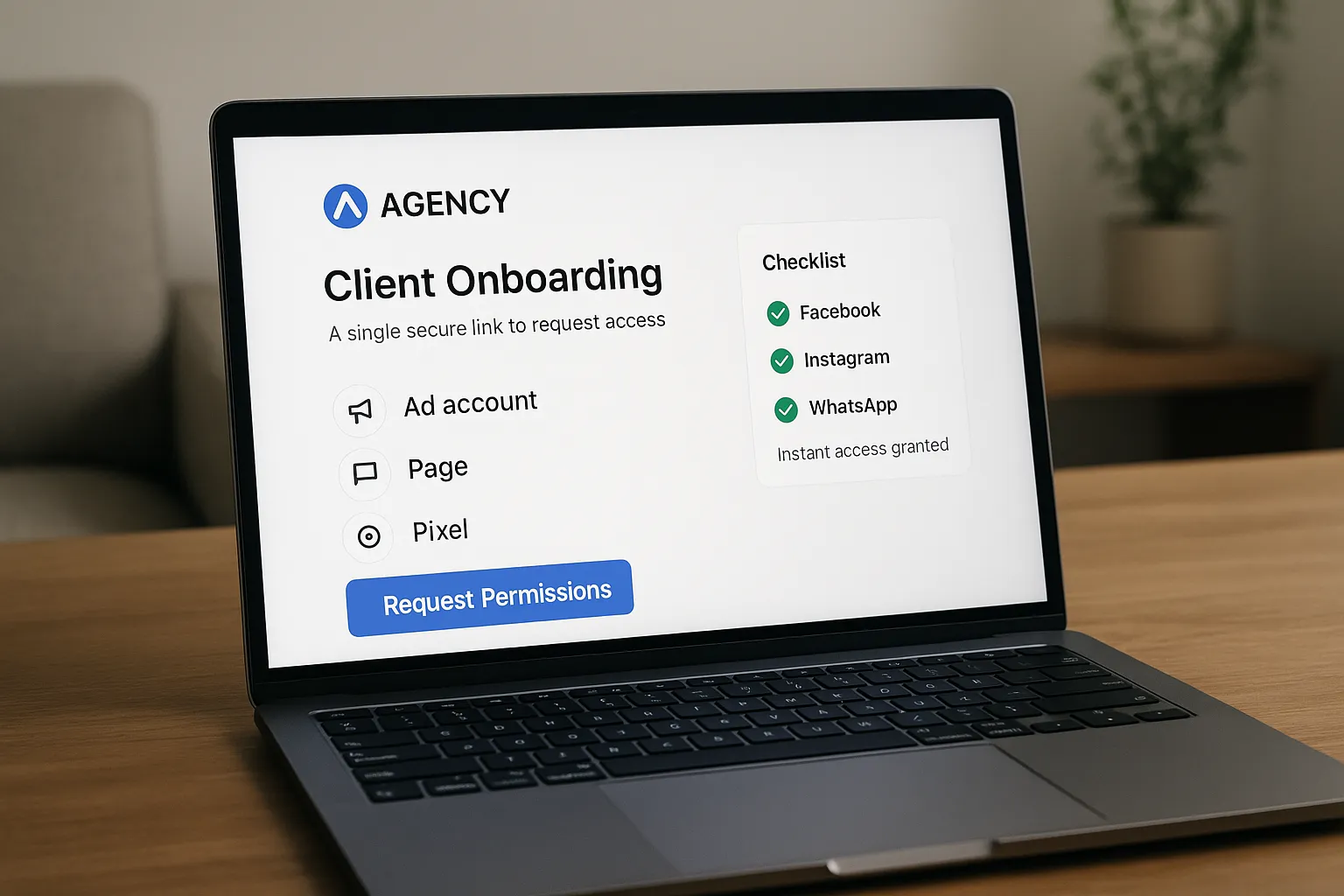
If access is fragmented across multiple client owners and platforms, a single onboarding link makes this step fast. With Connexify, agencies use one branded link to request the exact permissions needed, then clients grant access in seconds, no screenshots or passwords.
2) Rule out policy or integrity holds
- Open Account Quality in Business Manager to check for restrictions or rejections.
- Compare rejection reasons against the official Meta Advertising Standards. Edit and resubmit if the reason is clear, then escalate only if the decision appears incorrect.
- Confirm the Page and Business are compliant and not restricted. If identity or verification is requested, complete it first.
3) Rule out outages or known issues
- Check if other clients exhibit the same symptoms. If yes, suspect a platform problem.
- Review Meta Status and the Developer Platform Status. If there is an incident, wait or subscribe to updates before opening multiple tickets.
4) Billing and business verification
- Confirm the card or payment method is valid and authorized for the ad account.
- If you see prompts about verification, follow the steps outlined in Meta’s guide to Business Verification. Identity and verification issues often block delivery until resolved.
5) Event tracking and measurement
- In Events Manager, check that pixel or Conversions API events are firing, deduping, and attributed to the correct domain.
- Validate recent changes, new domains, new pixels, or partner integrations. A misconfigured tag often looks like a delivery issue but is a measurement problem.
Symptom to solution, fast triage map
Use this table to match common symptoms with likely causes, first checks, and where to escalate if needed.
| Symptom | Likely cause | First checks | Where to escalate |
|---|---|---|---|
| Ad account disabled or restricted | Policy or integrity violation, unusual activity | Account Quality, recent policy changes, user access review | Request review in Account Quality, then contact support via Help Center |
| Ads stuck in review more than 24 hours | Review backlog or flagged content | Ad content and landing page compliance, platform status | Open a Help Center case with ad IDs and timestamps |
| Disapproved ads with generic reason | Policy trigger in copy, creative, or destination | Compare against Ad Policies, test minor edits | Request review, then contact support with examples |
| Payment failures or delivery paused due to billing | Card decline, pending balance, billing threshold | Payment method status, bank authorization | Billing case via Help Center with last 4 digits and attempt time |
| Pixel or CAPI events missing or duplicate | Tag misfire, dedup mismatch, domain config | Events Manager diagnostics, test events | If persistent and non-config, file a Developer bug and open a Help Center case |
| Sudden CPM spike with normal delivery | Auction dynamics, seasonality | Auction overlap, frequency, creative fatigue | Not a support issue, adjust strategy instead |
Opening a case that gets a real answer
The goal is to make it easy for the agent to reproduce the issue and route it correctly. Be concise, complete, and specific.
- Go to the Meta Business Help Center support entry. Choose the affected asset and issue type.
- Start with a one-line summary. For example, Ads stuck in review for 36 hours across three ad sets in Account 123456789, no policy flags in Account Quality.
- Provide exact IDs and timestamps. Include Business Manager ID, Ad Account ID, ad or creative IDs, and the local time window when the problem occurred.
- Add steps to reproduce. What did you do, what did you expect, what actually happened.
- Attach evidence. Screenshots or a short screen recording, plus any relevant export from Events Manager or Billing. Redact customer PII.
- State impact and requested action. Estimate spend at risk and ask for a review, unlock, or escalation to the appropriate team.
Suggested case structure you can paste into the description field:
- Summary, 1 sentence describing the issue and impact
- Asset IDs, BMID, Ad Account ID, Page ID, Pixel ID, specific ad IDs
- Timeframe, when it started, time zone
- Repro steps, numbered list, 3 to 5 steps
- Evidence, links to screenshots or files, brief notes
- Checks performed, policy review, payment method validated, platform status checked
- Request, what you want support to do next
Example request line, Please expedite manual review for the three affected ads and advise if additional information is required for compliance.
When chat is unavailable, smart escalation paths
- Account Quality first. If a policy hold exists, the fastest path is often through Account Quality, request review, then contact support if the decision stands.
- Email or callback from Help Center. If chat is not offered, complete the form with full details. Keep the ticket number and reply in-thread for continuity.
- Developer issues. For API, pixel, or SDK bugs, file a report in the developer bugs channel and reference that URL in your Help Center case. This helps agents route to technical teams.
- Assigned reps. If your agency or client has an assigned Meta representative, share the ticket number and ask them to monitor the case. Not all accounts have rep support.
Follow-up, timelines, and client communication
- Set expectations. Non-urgent cases often see first responses within 1 to 3 business days. Identity, verification, or policy escalations can take longer.
- Keep a single thread. Reply to the same case with new evidence and avoid opening duplicates, which can slow routing.
- Document decisions. Capture the final resolution, the cause, and any preventive actions. Add the case ID to your client record.
- Close the loop. Translate support outcomes into clear next steps for the client, for example update landing page disclosures, complete verification, rotate creatives.
Preventing repeat incidents with process and tooling
Most support pain points stem from fragmented access, missing IDs, or unclear ownership. A clean onboarding flow reduces both time to first campaign and time to resolution when issues arise.
- Standardize access requests. Ask only for the permissions you require, ad account access, Page access, pixel access, and catalog access where relevant. Avoid shared logins.
- Centralize asset metadata. Store BMIDs, account IDs, Page IDs, pixel names, and domains in one place. Make this part of client intake.
- Automate notifications. When a client grants or revokes access, notify the account team so you can adjust workflows and avoid failed changes.
- Maintain a lightweight runbook. Keep your triage steps, support entry points, and message templates in a shared space.
Where Connexify helps your agency
- One-link client onboarding. Replace back-and-forth emails and screenshots with a single, branded link that collects the exact permissions you need across platforms.
- Customizable permissions and white-label options. Request only the required scopes and deliver a branded experience your clients trust.
- API and webhook integrations. Connect onboarding events to your internal systems, so ops and media teams know the moment access is granted.
- User-friendly dashboard and secure data handling. No installation is required, and you get a clear view of access across accounts.
The outcome, faster launches, cleaner compliance, and when something goes wrong, you have the right access and IDs in seconds, not days.
Frequently Asked Questions
What is the fastest way to reach Facebook ad support? Start at the Meta Business Help Center and choose the affected asset. If chat is available in your region and account, it will appear after you select the issue type. Otherwise, submit the form with full details and reply in-thread.
Why do some accounts not have chat support? Availability varies by region, language, advertiser history, and issue type. If chat is unavailable, use the Help Center form, request review via Account Quality for policy issues, and include complete asset IDs and evidence.
How long does it take to resolve a disabled ad account? It depends on the cause. Straightforward compliance errors can resolve after edits and a review. Identity or verification holds can take longer. Provide clear evidence and keep updates in a single ticket to speed routing.
Do I need admin access to contact support for a client? You usually need sufficient permissions on the affected assets. For billing, policy, or verification questions, admin or advanced access is often required. If you lack access, the client or an admin must either contact support or grant you the appropriate permissions.
How does Connexify help with facebook ad support cases? Connexify removes access friction, your client grants the exact ad account, Page, and pixel permissions through one branded link, so you can provide support with proper authorization and the right IDs on hand. This reduces time to resolution and improves compliance.
Ready to cut onboarding time from days to seconds and make support escalations painless. Book your demo and start a 14-day free trial at Connexify.