Google Search Console Access: Add Users Without Risk
02/20/2026

When a new client says “Sure, we’ll add you to Google Search Console,” the next 15 minutes can decide whether onboarding stays clean or turns into a security and governance problem you inherit for months.
The good news is that Google Search Console access is easy to grant safely if you’re clear on (1) which permission level you actually need, (2) which property you should be added to, and (3) how you will audit and remove access later.
This guide is written for agencies and service providers who want to get what they need from Search Console without creating risk for the client.
What “risk” looks like in Google Search Console access
Most problems are not hacks, they are process mistakes. Common failure modes include:
- Over-permissioning: you get Owner access when Full user would do, which increases blast radius if the wrong person is invited or a laptop is compromised.
- Identity mismatch: the client invites the wrong Google account, often a personal Gmail address instead of your agency-managed account.
- Orphaned access: ex-employees, freelancers, or former agencies remain on the property for years.
- Wrong property: you get added to a URL-prefix property that does not cover the live site variant the client actually uses.
Unlike ad platforms, Search Console does not have fine-grained access controls by directory or feature. So the main lever you have is the permission level and the property scope.
Search Console permission levels (and what to request)
Google Search Console has three practical access tiers you will encounter. Google’s terminology can be reviewed in the official documentation on users and permissions in Search Console.
| Permission level | What you can do | Best for | Avoid when |
|---|---|---|---|
| Owner (verified or delegated) | Manage users, settings, critical site-wide actions | In-house web team, a technical lead accountable for governance | You are a vendor who does not need to manage who else has access |
| Full user | View all data and perform most actions in the tool | SEO agencies running ongoing technical SEO and performance work | The engagement is advisory only, or you only need reporting |
| Restricted user | View most data, limited ability to take actions | Consultants doing audits, leadership visibility | You need to submit actions or manage settings |
A safe default
If you are an agency, request Full user first. Only request Owner access if you truly need to:
- Add or remove other users
- Manage ownership or verification methods
- Control high-impact settings
If the client asks “Why not Owner?”, a simple answer is: Owner access is for governance, Full user is for delivery.
Domain property vs URL-prefix property (scope is part of security)
Before anyone adds a user, confirm which property you should be invited to. Google explains the difference in Search Console property types.
- Domain property covers all protocols and subdomains (http, https, www, non-www, and subdomains). It is the most complete view.
- URL-prefix property covers only the exact prefix, for example
https://www.example.com/.
Practical guidance for agencies
- If you are responsible for SEO performance across the whole site, Domain property + Full user is the cleanest pattern.
- If you only work on a specific site section and the client wants tighter scope, consider creating a separate URL-prefix property for that section (when feasible) and invite you there.
Important constraint: Search Console does not let an Owner “limit” a Full user to only certain directories inside a single property. Scope control is achieved by choosing the right property, not by toggling permissions.
How to add a user in Google Search Console (step-by-step)
Clients can do this in under two minutes if you give them precise instructions.
1) Confirm the exact email to invite
Send the client one line with the email address and a note like:
“Please invite seo@agency.com (Google Workspace account, not a personal Gmail).”
This avoids the most common mistake: inviting the wrong identity.
2) Open the right property
Ask the client to open Search Console and select the property that matches what you agreed to (Domain property or a specific URL-prefix property).
3) Add the user
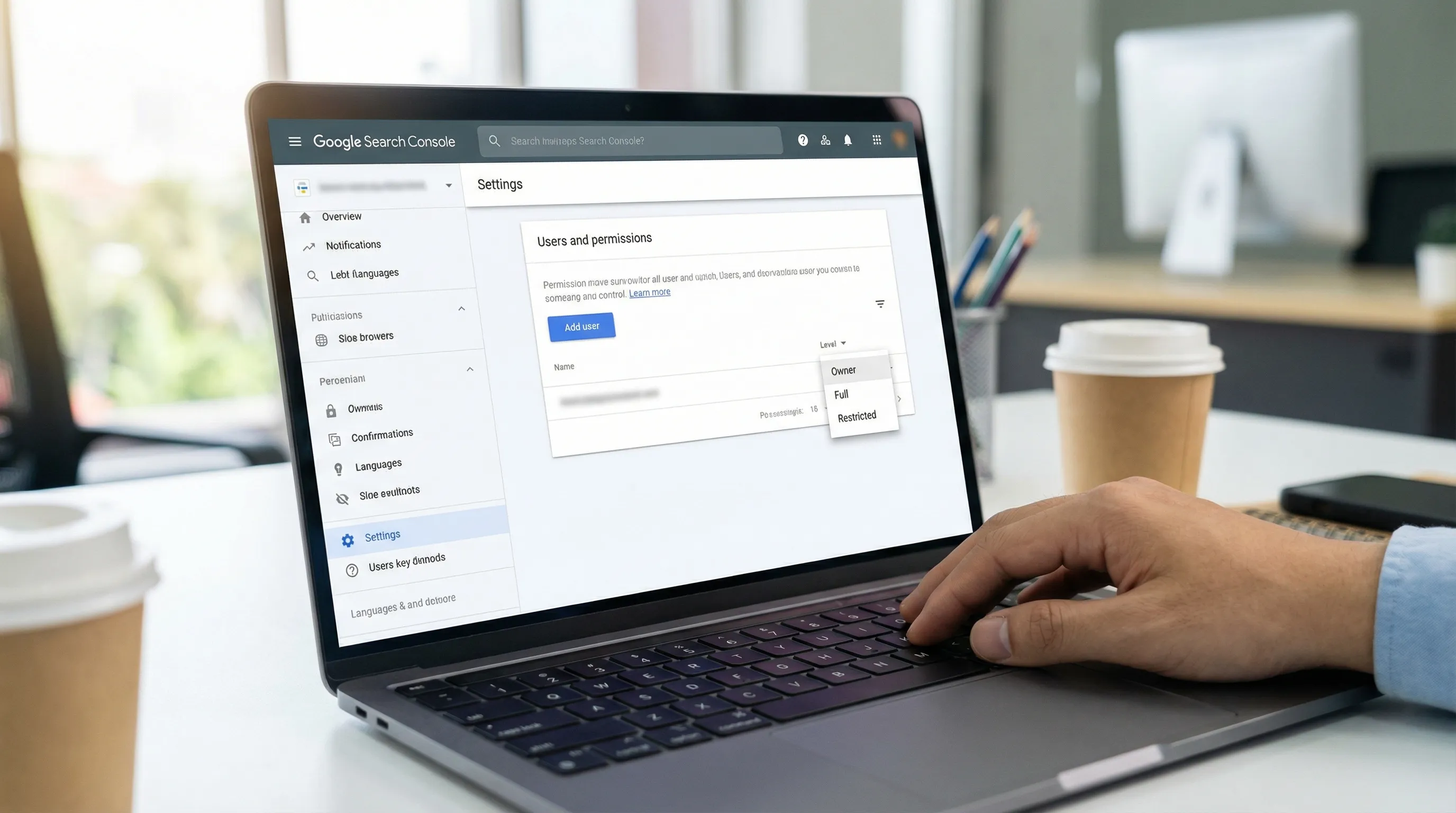
In the left navigation:
- Go to Settings
- Open Users and permissions
- Click Add user
- Enter the email
- Choose Full or Restricted
- Click Add
4) Verify access immediately
Have a 5-minute “verification moment” (live on kickoff, or async with screenshots). You are confirming:
- You can see the correct property
- The property scope is correct (not the wrong subdomain or protocol)
- You have the intended permission level
Reduce risk with a simple “least privilege” access packet
When onboarding is chaotic, clients tend to grant access impulsively. The fix is to make access requests boring and standardized.
Here is a lightweight packet you can reuse for every client:
- Property to invite us to: Domain property preferred (or specify the exact URL-prefix)
- Email to invite: your agency-managed email
- Permission level: Full user (or Restricted for advisory)
- Reason: technical SEO, performance monitoring, issue triage
- Access duration: until contract end, then removed within X days
This packet also creates an audit trail. It makes it easier to prove you asked for the minimum required access.
What not to do (even if it’s faster)
These are the patterns that cause real governance headaches:
Do not share passwords
Search Console is built around Google identities. Password sharing breaks accountability and complicates offboarding.
Do not invite personal emails for long-lived access
If you work at an agency, use an agency-managed identity. Personal Gmail accounts are easy to lose track of during staff changes.
Do not use Owner access as a convenience
Owner access is tempting because you can “just fix it,” but it also means you can accidentally change governance-critical settings. If you need to troubleshoot technical ownership or integrations, make Owner access time-boxed.
Time-boxing and audits: the simplest governance win
If you want one policy that prevents 80 percent of access-related issues, it is this:
Every quarter, review who has Search Console access and remove anyone who no longer needs it.
For agencies, a good standard is:
- Review access at onboarding, then quarterly
- Remove access within a defined window after offboarding
- Keep a record of which identities were invited and why
If you are building a broader governance program across client tools, it helps to borrow practices from mature IT service environments. Teams that already operationalize access reviews for platforms like Jira and Confluence often have strong playbooks. If you need senior-level guidance on governance and automation in that ecosystem, consider an Atlassian consulting partner like Avaratak Consulting for process design and implementation support.
Troubleshooting: why “I can’t see the property” happens
When access is granted but you still cannot see what you need, the root cause is usually one of these:
The client added you to the wrong Google account
You might have multiple Google identities logged in. Confirm the invited email, then sign out and back in, or use an incognito window.
You were added to the wrong property
Common examples:
- You were invited to
http://instead ofhttps:// - You were invited to
wwwbut the site is on non-www - You were invited to a subdomain property rather than the primary domain
The client only has a URL-prefix property
If you need full coverage and they do not have a Domain property set up, you may need them to create and verify it first. For many organizations, that is a quick DNS-based task owned by a web or IT stakeholder.
Where Connexify fits for agency onboarding
Search Console access is rarely the only thing you need. A typical onboarding also includes Google Analytics, Google Tag Manager, ad accounts, CMS access, and sometimes DNS or product analytics.
Connexify helps agencies and service providers standardize this entire handoff using a single branded onboarding link, so clients are not juggling scattered emails and unclear permission requests. Instead of “Can you add us to GSC?” living in a thread somewhere, you can make it a tracked step inside a consistent client onboarding flow.
Because Connexify is an onboarding layer (not another destination tool your client has to install), you can keep clients in control while still reducing back-and-forth and compressing time-to-access.
Frequently Asked Questions
What permission level should I give an SEO agency in Google Search Console? Full user is usually the right balance for delivery work. Reserve Owner access for governance tasks like managing users and verification.
Can I limit an agency to only one folder or section of my website in Search Console? Not within a single property. If you need tighter scope, consider inviting them to a separate URL-prefix property that matches the specific section.
Is it safe to add freelancers to Search Console? It can be, if you use least privilege (Restricted when possible), time-box access, and run quarterly audits to remove inactive users.
Why can’t my agency see the property after I added them? Most often it is the wrong Google account, the wrong property (http vs https, www vs non-www), or you added them to a different Search Console property than the one you intended.
Do I need to share passwords to give Search Console access? No. Search Console is designed for identity-based access through Google accounts. Password sharing increases risk and complicates offboarding.
Make client access predictable across every platform
If you want to stop chasing access in email threads, Connexify turns your onboarding into a repeatable system: one branded link, clear permission requests, and a smoother client experience from day one.
Get started at Connexify with a 14-day free trial, or book a demo to see how teams compress onboarding from days to seconds.