Meta for Business: Permissions, Roles, and Safe Access
12/23/2025

If you manage clients on Meta, the fastest way to an early win is getting the right people the right access the first time. Grant too much and you increase risk. Grant too little and you block launches, tracking, and billing. This guide breaks down how Meta for Business permissions actually work, which roles to assign for common agency jobs, and how to keep access safe without slowing down onboarding.
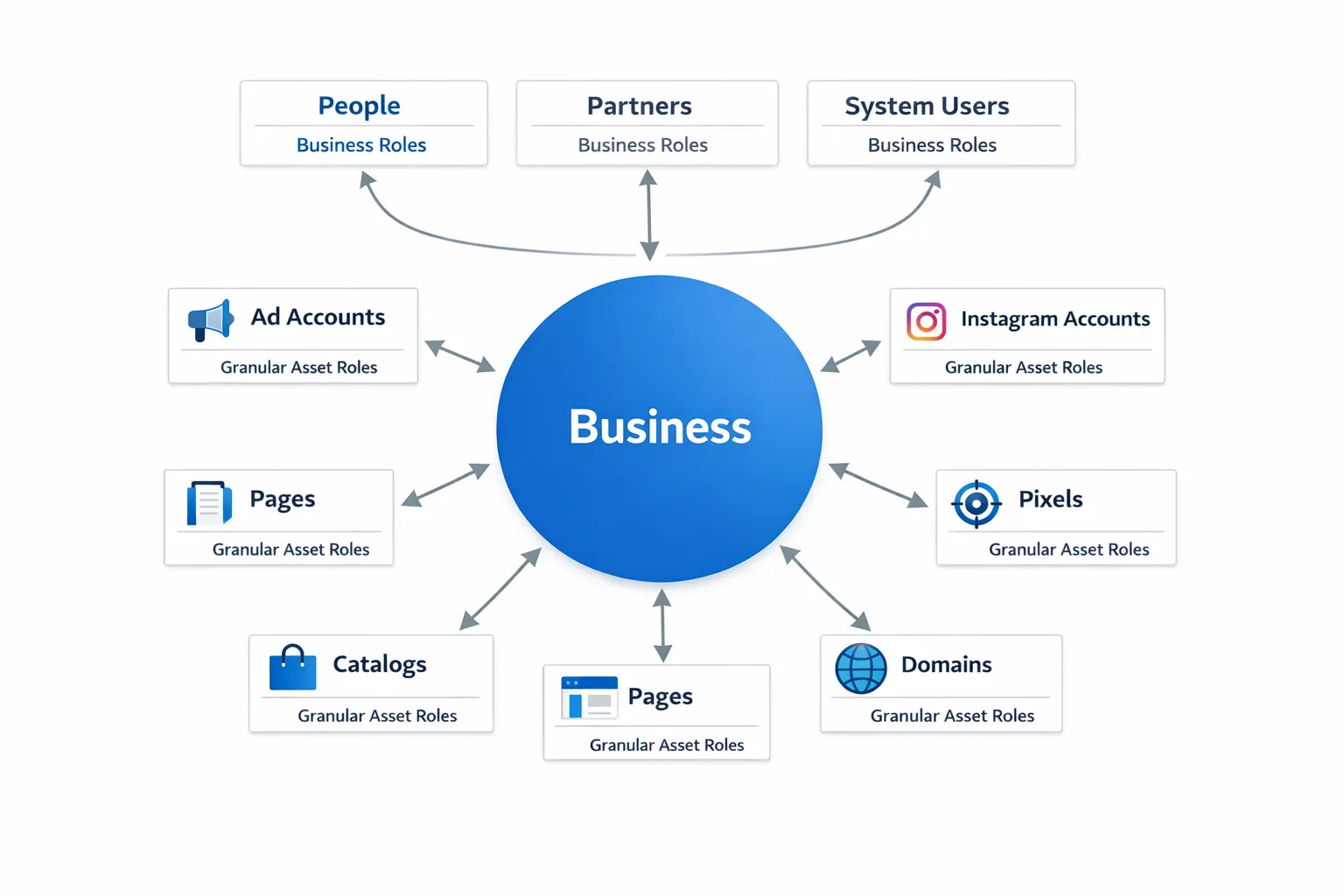
Meta’s access model in plain English
Meta Business access has three layers that work together:
- Business roles, set at the business level. Admin, Employee, and Finance roles that control who can manage settings, people, and payments.
- Asset permissions, set on specific assets. For example, Ad Account Admin, Advertiser, or Analyst. Pages and Catalogs have their own role sets.
- How you connect people, partners, and system users. People are human users, Partners are companies you grant asset access to, and System Users are service accounts used by apps or servers.
Two core principles drive safe setups:
- Use Partner access for agencies, not Business Admin on the client company. The client keeps ownership, and the agency gets scoped permissions.
- Follow least privilege. Grant only what the role needs, then elevate temporarily when work requires it.
For role definitions and official scopes, see the Meta Business Help Center. A good starting point is the Roles and Permissions section in the help hub at the Meta Business Help Center.
Role recipes by job function
Use these baseline templates and elevate only when necessary.
| Function | Business role | Ad account | Page | Pixel | Catalog | Commerce or Billing | |
|---|---|---|---|---|---|---|---|
| Media buyer | None on client business, use Partner access | Advertiser by default, Admin only during migrations | Advertiser or task-based ads access | Assign to the ad account for use in ads | View or Edit if they manage events | Advertiser to use in campaigns | No access |
| Creative or social | None on client business, use Partner access | None unless boosting via Ads Manager | Editor or task-based publishing and moderation | Content and messaging access | View | View | No access |
| Analyst | None on client business, use Partner access | Analyst | Insights only | Insights only | View | View | No access |
| Developer or tracking | None on client business, use Partner access | None unless QA needs reporting | None | None | Admin or Editor as required for Conversions API | None | No access |
| Finance | Finance Analyst or Editor, not Business Admin | Admin if they manage payment methods | None | None | None | None | Finance Analyst to view invoices or Finance Editor to manage payments |
Notes:
- Pages have both classic roles and task-based access in the new Page experience. Grant only the tasks needed, like Create ads or View insights.
- Instagram accounts are typically linked to ad accounts for ad use. Do not grant broad manage access unless the person handles content or messages.
- Pixels and other data sources have view or manage rights. Keep manage rights narrow, because this includes configuring events and sharing data.
Partner access vs. People access
Use Partner access when you work as an external agency. This keeps the client in control and lets you scope assets precisely.
Partner access is usually safer and faster because:
- The client can assign multiple assets in one place.
- You avoid adding dozens of external emails as People on the client business.
- Offboarding is a single action, remove the partner, and the agency loses all asset access at once.
When to add People instead:
- The client’s internal employees, or contractors that effectively operate as internal staff.
- Short-term troubleshooting when partner routing is blocked. Remove access immediately after.
See the Meta Business Help Center for the latest steps to add a Partner and assign assets.
Safe access checklist before you start
- Confirm the client’s business verification and primary admin are in place.
- Turn on two-factor enforcement for the business. Require 2FA for everyone with access.
- Ban shared logins. Every user must have a named account tied to a work email.
- Record asset IDs up front. Business ID, Ad Account ID, Page URL or ID, Pixel ID, Catalog ID, Domain status.
- Decide the default permission recipes per role. Do not improvise during kickoff.
- Separate billing authority from campaign management. Finance handles payment methods, not media buyers.
- Plan offboarding before onboarding. Document who removes access and where you log the change.
For how-to steps on secure setup, see our companion guide, Meta Business Setup: Secure Access Steps for Agencies.
Asset-by-asset, the right permission to request
Ad accounts
- Admin, full control of campaigns, people, and billing. Use only when necessary, for example during restructures or billing changes.
- Advertiser, can create and manage campaigns and assets, cannot change billing or add users.
- Analyst, view only for reporting, audits, and QA.
Recommended, media buyers are Advertiser by default. Analysts are Analyst. Finance gets Admin if they add or manage payment methods.
Facebook Pages
Pages support classic roles and task-based access. For agencies, task-based access is clearer.
- Full control, similar to classic Admin, reserved for client owners.
- Partial control, pick tasks like Create content, Moderate messages, Create ads, View insights.
Recommended, give Creative or Social the tasks they need, and give Media buyers the Create ads task when required.
Instagram accounts
Often used as an identity for ads. Assign the Instagram account to the ad account and grant content or messaging access only if the person handles community management.
Pixels and Events Manager
- Manage or Edit access lets users change events, configure Conversions API sources, and share data with ad accounts.
- View lets users see signals and diagnose issues without changing event configuration.
Recommended, Developers get Manage or Edit as needed. Media buyers typically need View only.
Catalogs
- Admin manages items, feeds, and connected assets.
- Advertiser uses the catalog in campaigns.
Recommended, assign Advertiser for dynamic ads use. Reserve Admin for the merchandising or dev team.
Domains
Ensure domains are verified and assigned to the correct Business. Restrict who can change event priority or verification settings.
Apps and developer access
App roles live in Meta for Developers, not just Business Settings.
- App roles include Administrator, Developer, and Tester. Assign these to named users only.
- Use System Users for servers and CAPI, never a personal token.
See the Conversions API docs on the Meta Developer site for current implementation guidance.
Developers and Conversions API, the safe path
Follow this pattern for durable, auditable server-side tracking:
- Create or use a Business-owned app. Avoid personal apps for production data.
- Add a System User in Business Settings, then assign the Pixel and relevant assets.
- Generate a token for the System User with only the scopes your integration needs.
- Store the token in a secret manager, rotate on a defined schedule, and never paste tokens into chat or email.
- Prefer gateway or managed integrations that reduce token sprawl and centralize logging.
- Log every config change. Who created tokens, who changed events, when, and why.
For more detail, start with the Meta Developers Conversions API overview.
Governance that scales, without slowing teams
- Quarterly access reviews, export a list of users, partners, and asset roles. Remove anything not justified by an active scope of work.
- Least privilege by default, then temporary elevation for migrations or audits. Downgrade when the task is complete.
- Separation of duties, billing and payments are separate from campaign creation. Pixel administration is separate from media buying.
- Change logging, record who requested, approved, and granted any new access.
- Offboarding, revoke partner access, remove people, and disable system user tokens. Document each step.
For a step-by-step operational playbook, see Facebook Business Manager Access: Client Onboarding Checklist.
Industry note, regulated clients
Some verticals carry extra compliance risk, for example healthcare, finance, or transportation. If you advertise for fleets or logistics, keep compliance vendors separate from ad access and use authorized providers for filings. For highway use tax, an example would be using an IRS-authorized Form 2290 e-filing provider for Schedule 1, while maintaining least-privilege access on Meta assets. Different systems, different permissions, clear audit trails.
Troubleshooting common access blockers
- You cannot be added to an ad account, check if the ad account is owned by a different Business than the client expects, or if it has reached its user limit. The client may need to claim or consolidate assets first.
- Page tasks are grayed out, confirm the Page is using the new Page experience and that the assigning user has full control on the Page.
- Pixel not visible in Events Manager, confirm the pixel is owned by the client Business, then share it with the ad account and assigned people or partner.
- Billing edits denied, ensure the user has either Ad Account Admin or the Business Finance Editor role depending on what is being changed.
- Conversions API errors about permission scopes, regenerate the system user token with the required scopes and confirm the system user is assigned to the pixel and ad account.
If the issue looks like a platform bug, prepare asset IDs, screenshots, and timestamps, then contact Meta support through the in-product Help Center. Our Navigating Facebook Ad Support playbook covers escalation steps and case hygiene.

A two-week rollout plan that keeps velocity and safety
Week 1, foundations
- Define your permission recipes per role for Meta assets and save them in your SOP.
- Turn on 2FA enforcement in each client Business and confirm business verification.
- Inventory assets and IDs. Reclaim or verify domains and pixels as needed.
Week 2, execution
- Request Partner access from the client, attaching your ID and the list of assets and roles to assign.
- Implement Conversions API with a system user and document token handling.
- Run an access dry run. Validate that each role can complete their task end to end.
- Schedule a 15 minute verification call before launch. Fix gaps live.
Where Connexify fits
Connexify turns this playbook into a repeatable, one-link experience clients actually complete.
- One-link client onboarding, send a single, branded link that captures IDs and routes the client to grant partner or asset access in minutes.
- Branded onboarding experience, maintain your agency’s look and feel.
- Supports multiple platforms, bring Meta together with Google, TikTok, Pinterest, and more.
- Customizable permissions, align our flow to your role recipes and scopes of work.
- White-label options, make onboarding feel native to your agency.
- API and webhook integrations, push asset metadata and access status into your CRM or PM tools.
- User-friendly dashboard, track who has access to what, with live status.
- Secure data handling, no shared credentials and no local installs.
- No installation required and a 14-day free trial so you can validate the fit quickly.
Explore how agencies compress setup from days to minutes in our guide on How Facebook Advertising Agencies Cut Onboarding Time.
Frequently Asked Questions
What is the difference between Business roles and asset permissions? Business roles govern what a user can do at the company level, for example manage people, settings, or payments. Asset permissions govern what a user can do within a specific asset, for example create campaigns in an ad account or publish on a Page.
When should an agency be a Partner versus a Person? Use Partner access for almost all agency relationships. It keeps ownership with the client, lets you assign multiple assets quickly, and makes offboarding a single action. Add People only for internal staff or narrow, short-term troubleshooting.
Who needs Ad Account Admin? Only users who manage billing, add or remove users, or restructure accounts. Media buyers rarely need Admin day to day. Advertiser plus a clear elevation process is safer.
How do we keep Conversions API tokens safe? Use a Business-owned app with a System User, assign only the required assets, store tokens in a secret manager, and rotate on a schedule. Never use personal tokens in production and never share tokens in chat or email.
What is the fastest way to validate access before launch? Host a short verification call with the client. Share screen, confirm each role can perform its task, and fix gaps live. Connexify’s dashboard helps you see missing permissions before the call.
How often should we audit access? Quarterly is a good baseline. Audit sooner after team changes, scope changes, or campaign pauses.
Launch fast, stay safe
Give your team the access they need without compromising client security. Connexify makes it simple, one branded link for your clients, customizable permissions for your scopes, instant visibility for your team. Start a 14-day free trial or book a demo to see how fast safe access can be.