Meta Business Setup: Secure Access Steps for Agencies
12/06/2025

Agencies live or die on how fast and safely they can get into a client’s Meta environment. If the Meta Business setup is sloppy, you risk delayed launches, wasted spend, and compliance gaps. The good news is that a secure, repeatable access process is straightforward once you standardize it. This guide walks agencies through the exact secure steps to request and manage access, what to collect from clients, and how to avoid the most common pitfalls.
Why a secure Meta Business setup matters for agencies
- Risk control, clean separation between your agency and the client’s assets reduces data leakage and offboarding headaches.
- Compliance, advertisers expect least-privilege access, consented data flows, and two-factor authentication for every user touching spend.
- Scalability, a standardized access flow keeps launches predictable and fast across many clients.
For policy details and UI references, bookmark the Meta Business Help Center. Labels change over time, but the principles below remain stable. Useful starting points, Meta Business Help Center, Two-factor authentication in Business Manager, Business verification, and Events Manager basics.
Before you start, security prerequisites for agencies
-
Verify your agency business. Verified businesses encounter fewer limitations and build trust with clients. See Meta’s guidance on business verification.
-
Enforce two-factor authentication for everyone. In Business Settings, require 2FA for all users before they can access assets. This is one of the most effective protections against account compromise.
-
Use business emails and named user accounts. Avoid generic logins. Each team member should have an individual profile with the minimum permissions required.
-
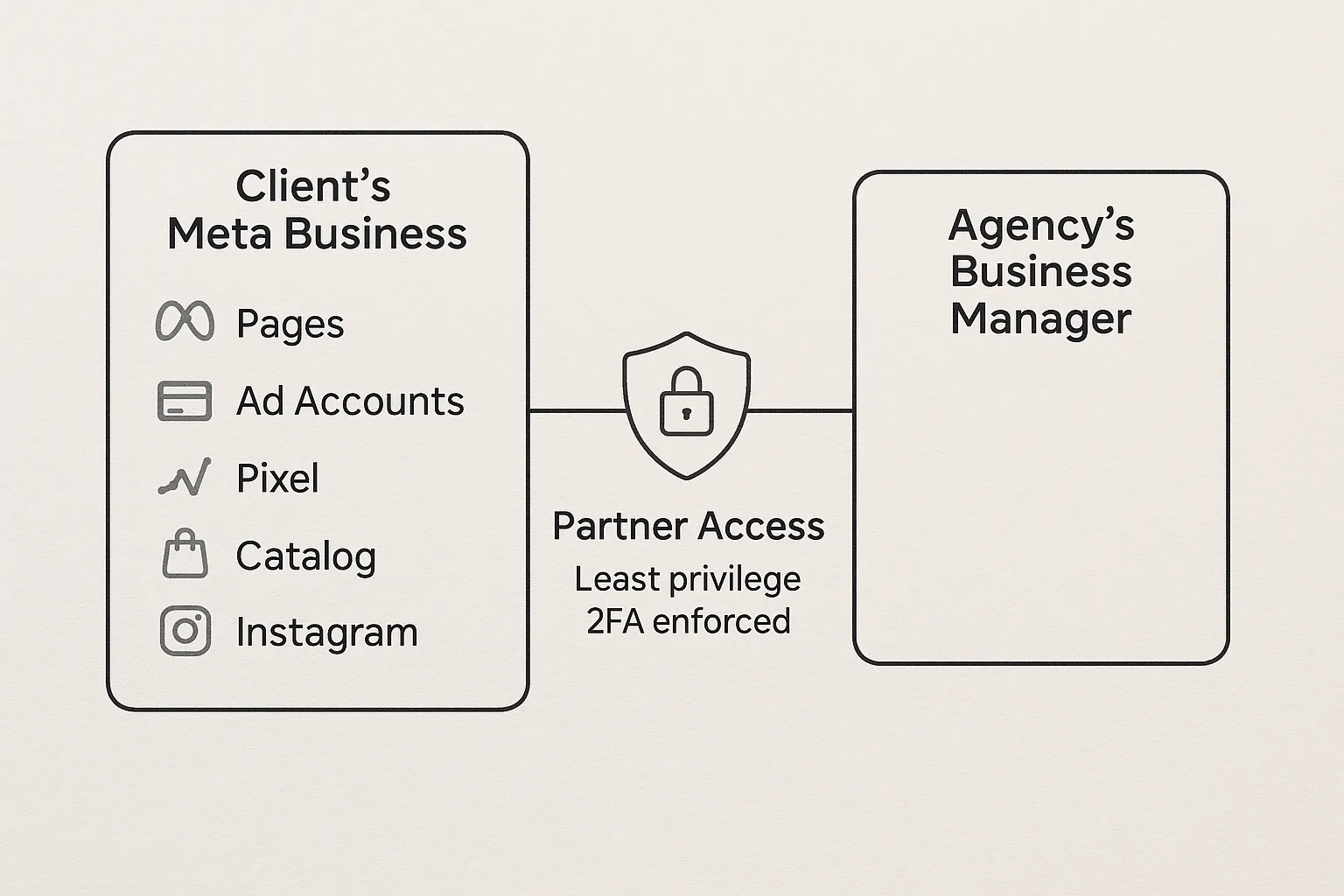
Decide ownership rules upfront. As a best practice, the client should own core assets, ad accounts, pixels, pages, catalogs, and payment methods. Agencies should request partner access, not claim ownership, unless specifically contracted.
-
Standardize your checklist. Document the exact assets and permissions you will request for your scope, campaign management only, full-funnel including pixel and conversions, or organic content management.
The secure way to connect, partner access, not personal access
There are three common actions inside Meta Business:
- Request access to a client’s existing assets as a partner. Recommended. Keeps ownership with the client while granting your agency the rights needed to work.
- Claim an asset. Transfers ownership into your Business Manager. Avoid this unless your contract requires agency ownership.
- Add people directly to the client’s Business Manager. Not recommended for agencies. It blurs org boundaries and increases offboarding risk.
The secure, scalable model for agencies is to be added as a partner to the client’s Business Manager and to be granted task-based permissions to specific assets.
Step-by-step, secure Meta Business setup for agencies
- Collect the right identifiers from the client
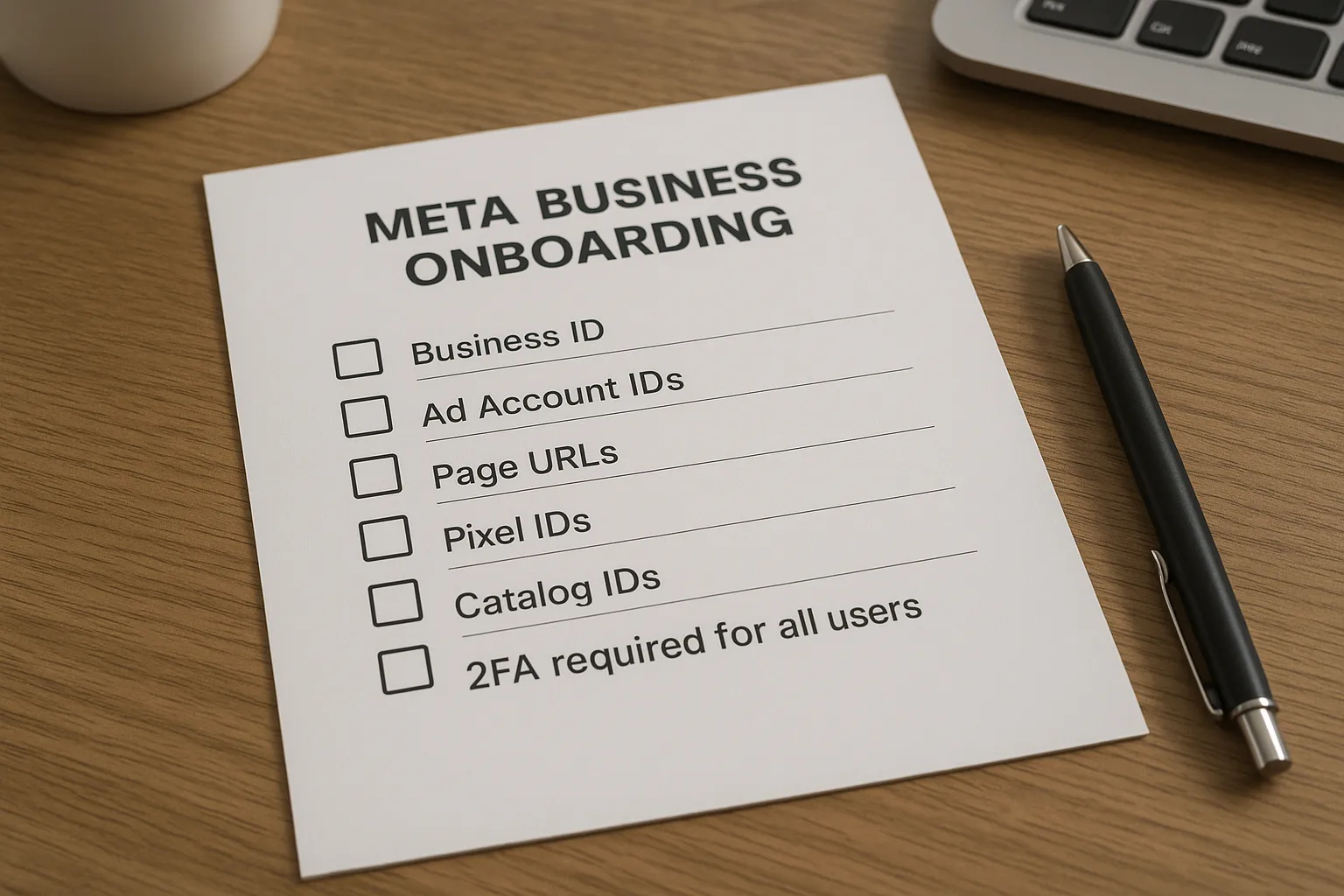
Ask your client for the following. If they do not have a Business Manager yet, guide them to create one at business.facebook.com and then claim their assets before proceeding.
| Item | How the client finds it | Why you need it |
|---|---|---|
| Client Business Manager ID | Business Settings, Business Info | Required to link partners |
| Facebook Page URL(s) | From their Page or Business Settings | For ad delivery and content permissions |
| Ad Account ID(s) | Ads Manager, top-left account picker | Campaign trafficking and billing view |
| Pixel or Data Source ID(s) | Events Manager | Event configuration and CAPI |
| Catalog ID(s), if applicable | Commerce Manager, Catalogs | Product feed ads |
| Instagram professional handle | Instagram app or Business Settings | Ads and content access |
- Client adds your agency as a partner and assigns assets
Share the steps below with the client’s Business Admin. UI labels vary slightly over time, but the flow is consistent.
- In Business Settings, go to Users, Partners, Add, Give a partner access to your assets.
- Enter your agency’s Business Manager ID.
- Choose assets to share and toggle only the permissions your scope requires. Repeat for Pages, Ad Accounts, Pixels or Data Sources, Catalogs, and Instagram accounts.
- Save and confirm.
Reference, Meta Business Help Center and search for “Add a partner” if the client needs visuals.
- Confirm access on the agency side
In your Business Settings, check Partners or Accounts to see assigned assets. If anything is missing, ask the client admin to review the asset list again. Run a quick smoke test, view ad accounts, confirm billing visibility as appropriate, and confirm your user team has the right task permissions.
- Configure events and the Conversions API securely
- Pixels and events, in Events Manager, confirm access to the client’s data sources. Coordinate on event naming, deduplication, and advanced matching. Advanced matching should hash customer data client-side before transmission.
- Conversions API, decide on the server integration path. If you will manage CAPI, agree on where tokens or app credentials will live and how they will be rotated and revoked on offboarding. Avoid reusing any token across clients. See Conversions API documentation for current options.
- Domain verification and aggregated measurement, help the client verify domains and prioritize events where applicable.
- Lock down security and governance
- Enforce 2FA, require it at the business level for both organizations.
- Least privilege, only grant the minimum tasks needed, for example, create and manage ads without page admin if you do not publish organic content.
- Payment control stays with the client, the client’s payment method should stay on their ad account unless otherwise agreed.
- Activity reviews, schedule quarterly access audits and immediately revoke access when a contract ends.
- Test and document
- Launch checklist, confirm you can see the target ad accounts, pages, pixels, and catalogs. Use Events Manager’s Test events to validate pixel and server events.
- Document the final access state, who has which permissions on which assets, and store it in your internal runbook.
Recommended permissions by common agency scope
The exact labels in Meta may change. Use this table as a principle-based guide and enable only the tasks necessary for your deliverables.
| Scope | Assets to request | Minimum practical access | Notes |
|---|---|---|---|
| Paid media only | Ad account, Pixel or Data Source, Facebook Page, Instagram account | Ad account, create and manage ads. Page, create and manage ads only. Pixel, view and manage events if you optimize conversions. | Keep page admin off if you do not publish content. |
| Full-funnel including tracking | All above plus domain verification context | Ad account, full ads control. Pixel or Data Source, manage events and CAPI. | Align on event naming and dedup strategy. |
| Organic content management | Facebook Page, Instagram account | Page and IG content tasks, schedule, publish, moderate. | No ad account access unless you run boosts or ads. |
| Catalog ads | Catalog, Ad account, Pixel | Catalog advertiser or equivalent, ad account ads management, pixel view or manage. | Ensure feed ownership remains with client. |
Common mistakes that slow down Meta Business onboarding
- Asking for admin everywhere. Admin access is rarely needed and increases risk. Request task-based access aligned to scope.
- Claiming client assets into your Business Manager. This complicates offboarding and ownership. Use partner access instead.
- Creating new client ad accounts under your agency. The ad account should live in the client’s business unless the contract mandates otherwise.
- Skipping two-factor authentication. Many access issues and policy flags are avoided by requiring 2FA.
- Mixing personal and business identities. Use Business Manager with business emails and named users.
- Reusing CAPI tokens. Tokens must be per client and rotated on schedule. Store them securely and remove them during offboarding.
Client-friendly instructions you can send today
Copy, paste, and customize the template below for your next client onboarding.
Subject, Securely granting our agency access to your Meta Business assets
Hi [Client Admin Name],
To start work, please add [Agency Name] as a partner to your Meta Business and assign the assets below. This keeps your ownership intact while giving us the minimum access we need.
- Find your Business Manager ID, Business Settings, Business Info, copy Business ID.
- Add our agency as a partner, Business Settings, Users, Partners, Add, Give a partner access. Enter our Business ID, [Your Agency BMID].
- Assign assets and permissions,
- Facebook Page, create and manage ads.
- Ad Account, create and manage ads.
- Pixel or Data Source, manage events (if we are configuring conversions and CAPI).
- Instagram account, ad permissions only, unless we are posting content.
- Catalog, advertiser access (if we are running catalog ads).
- Require two-factor authentication for your business. This protects both teams.
If any label looks different, search “Add a partner” in the Meta Business Help Center. When done, reply to this email and we will confirm on our side.
Thank you, [Your Name] [Agency Name]
How Connexify helps agencies make this process effortless
If you run this setup a few times a month, you can manage. If you run it dozens of times a week across accounts and regions, you need automation.
Connexify streamlines client onboarding into Meta and other platforms through a single, branded link that walks clients through exactly what you need. Agencies use Connexify to,
- Send one link that standardizes requests for Business IDs, asset IDs, and permissions, no installation required.
- Deliver a white-label, branded onboarding experience that clients trust.
- Support multiple platforms in one flow, Meta, plus the rest of your stack.
- Trigger API and webhook integrations so your internal systems update instantly when the client completes onboarding.
- Centralize a user-friendly dashboard for status tracking, secure data handling, and faster approvals.
Result, you reduce onboarding time from days to seconds while improving security and client experience.
- Start a 14-day free trial, Connexify
- Prefer a walkthrough, Book your demo
Frequently Asked Questions
Do I need Business Admin on the client’s account to run ads? In most cases no. You typically need task-based permissions to create and manage ads on the ad account and ad permissions on the Page and Instagram account. Reserve full admin for scenarios where you must manage other users or high-risk settings.
Should the agency own the ad account or the client? Typically the client should own the ad account, pixel, and payment method. Agencies should request partner access. Exceptions exist, for example, specific contract structures, but agree on ownership in writing before any buildout.
What if my client does not have a Business Manager? Have them create one at business.facebook.com, claim their assets, then add your agency as a partner. If ownership is scattered across personal profiles, consolidate assets into the client’s Business Manager first.
How do we handle Conversions API securely? Use per-client tokens or app credentials, never reuse across clients. Store secrets securely, rotate on a schedule, and delete during offboarding. Coordinate deduplication with pixel events in Events Manager.
Why can’t I see the client’s ad account after they added our agency? Usually the asset was not shared or the wrong permissions were toggled. Ask the client admin to revisit Partners in Business Settings and assign the specific ad account to your agency with the needed tasks.
What should we document for compliance? Keep records of who has access to which assets, when access was granted, when it was last reviewed, and what data flows are in place. Enforce 2FA and least privilege, and maintain a repeatable offboarding checklist.
Can Connexify automatically grant partner access in Meta? Connexify standardizes and accelerates the onboarding process using a single branded link, customizable permissions, and integrations. It does not change Meta’s native security model, you still connect through Meta’s official partner access flow.
Final checklist for a secure Meta Business setup
- Client owns assets and payment methods, agency requests partner access.
- 2FA required for all users in both businesses.
- Only necessary tasks are enabled for each asset.
- Pixels, events, and CAPI configured with hashing and deduplication.
- Access documented and reviewed on a recurring schedule.
Ready to turn this process into a one-link experience your clients love, Try Connexify free for 14 days or book a demo to see it in action.