Facebook Business Manager Access: Client Onboarding Checklist
12/06/2025

Getting clean, secure access to a client’s Facebook Business Manager can make or break your kickoff timeline. If you have ever lost a week to back-and-forth invites, missing IDs and permission mismatches, this checklist is for you. Use it to standardize your onboarding, reduce risk, and get campaigns live faster.
Note on naming: Facebook Business Manager is now called Meta Business Manager. Most clients still say Facebook Business Manager, so we will use both terms interchangeably.
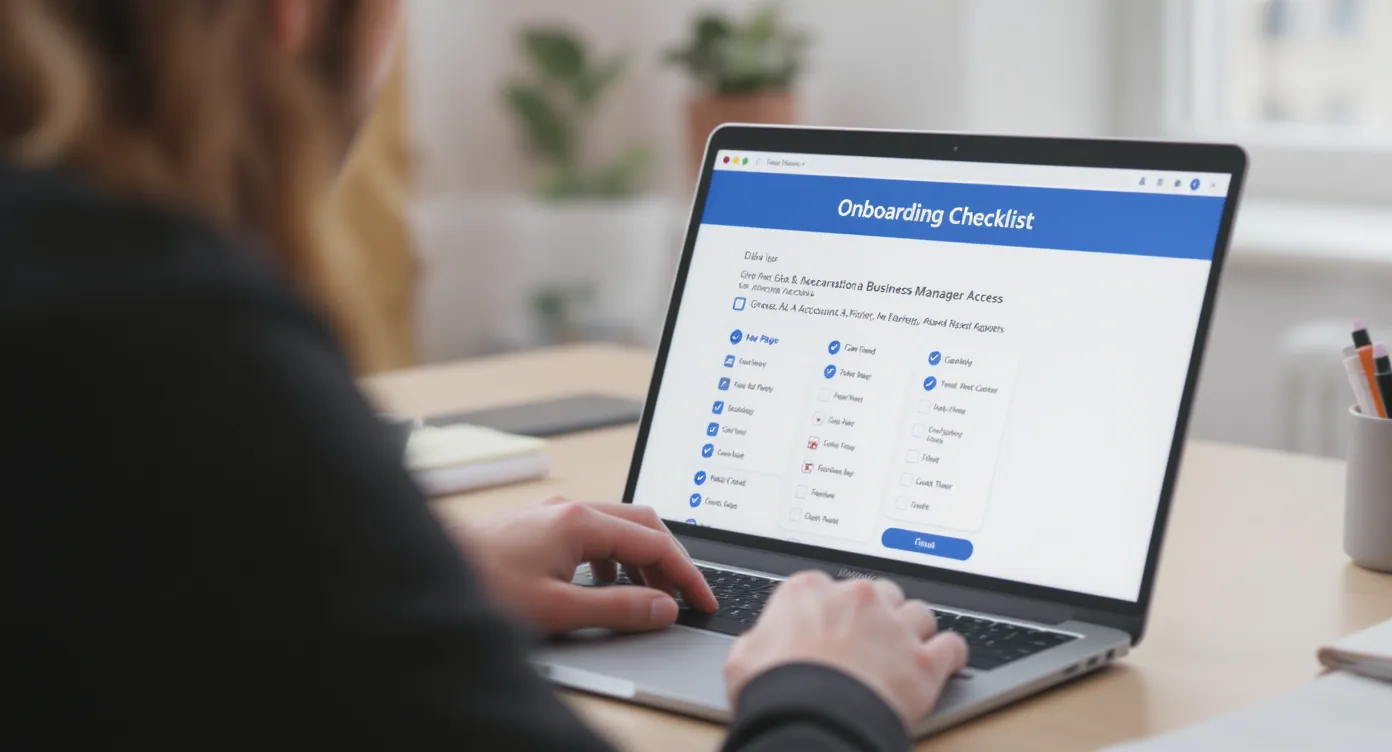
The 5 minute summary
- Confirm the client’s Business Manager admin and two factor authentication are set up.
- Decide whether you will be added as a Partner or will request access to specific assets.
- Collect exact IDs and URLs for all assets you need, then verify ownership in the client’s Business Manager.
- Assign permissions by asset type, then test access before kickoff.
- Document what was granted, when it expires, and how to revoke after the engagement.
What you will need from the client
Ask the client to send these items in one message. If they do not have them, your setup plan should include creating what is missing.
- Business Manager ID
- Facebook Page URL and Page ID
- Ad Account ID, desired currency and time zone
- Pixel ID, Events Manager access and domain to verify
- Instagram Professional account handle linked to the Page
- Product Catalog ID if commerce is in scope
- Website platform, tag manager, and any consent solution details
- Primary billing owner and billing method plan
- Primary contact who is Business Manager admin
Tip: Business Manager IDs and asset IDs are available in Business Settings. If the client is unsure, point them to the Meta Business Help Center for exact steps: https://www.facebook.com/business/help/
The recommended method, client adds your agency as a Partner
This is the cleanest and most secure path for agencies.
- Client logs in to business.facebook.com and opens Business Settings.
- In the left navigation, they select the asset category, for example Accounts, Data sources or Brand safety.
- They click Add, then Add a Partner.
- They enter your agency’s Business Manager ID.
- They toggle the specific permissions you request per asset, then Save.
Alternative method, your agency requests access:
- In your own Business Manager, go to Business Settings, then Accounts or Data sources.
- Click Add, choose Request Access to a Page or Ad Account, or Connect a Data Source.
- Enter the client’s asset ID, select the needed permissions, then send the request.
- The client must approve in their Business Settings.
Meta’s interface changes regularly, so if something looks different, search the Meta Business Help Center for Add a partner to Business Manager.
Exactly what to request by asset
Use this table to drive a precise ask and avoid under or over provisioning. Permission names change over time, so aim for the closest equivalent in the current UI and confirm with a quick live test.
| Asset | What to request from client | Minimum access for launch | Where to assign |
|---|---|---|---|
| Facebook Page | Page URL or ID | Ability to create and manage ads connected to the Page, plus view insights | Business Settings, Accounts, Pages |
| Ad Account | Ad Account ID, currency, time zone | Create and manage campaigns, view performance, manage pixels connected to the account | Business Settings, Accounts, Ad Accounts |
| Pixel and Events | Pixel ID and Events Manager access | Configure and manage events, view diagnostics, connect to ad account | Business Settings, Data sources, Pixels |
| Instagram Professional | Handle that is linked to the Page | Create ads for Instagram placement, view insights | Business Settings, Accounts, Instagram accounts |
| Product Catalog | Catalog ID | Add items, create product sets, connect to ad account | Business Settings, Data sources, Catalogs |
| Domains | Domain to verify and prioritize events | Verify domain and configure event priorities in Events Manager | Business Settings, Brand safety, Domains |
| Conversions API | Integration method or token plan | Ability to configure CAPI in Events Manager or via partner integration | Events Manager, for the Pixel |
Permission planning, the principle of least privilege
- Only request what you need for the current scope. For example, you may not need billing admin if the client funds the account directly.
- Assign access at the asset level, not the whole Business Manager unless necessary.
- Use Partner access for your agency, and People access for individual team members who will work inside the client’s assets.
- Require two factor authentication for everyone working on the account.
Client Onboarding Checklist for Facebook Business Manager access
Copy, paste, and adapt to your workflow.
- Confirm the client has a Meta Business Manager and at least one admin with two factor authentication enabled.
- Collect Business Manager ID, Page URL, Ad Account ID, Pixel ID, Instagram handle, Catalog ID, website domain, billing owner, time zone, currency.
- Decide access method, Add Partner recommended. Share your agency’s Business ID with the client.
- Ensure the client Page, Ad Account, Pixel, Catalog and Instagram are all owned by the client’s Business Manager, not by a personal profile. Move assets in if needed.
- Client adds your agency as a Partner and assigns each asset with the correct permissions.
- If you request access instead, send requests for each asset and have the client approve.
- Confirm billing responsibilities. If you will create a new ad account, align on currency, time zone and payment method.
- Verify domain in Business Settings and configure Aggregated Event Measurement priorities in Events Manager if applicable.
- Test access. Load Pages, Ad Accounts, Pixel diagnostics, Catalog items and Instagram placements.
- Document what was granted and the expiry date. Agree on a process to revoke or adjust access at offboarding.
Common roadblocks and how to fix them quickly
- The client is not a Business Manager admin. Ask the organization owner to grant the primary contact admin in Business Settings before you proceed.
- The Page or Ad Account is owned by an individual, not the Business Manager. Transfer ownership into the client’s Business Manager, then reassign partner access.
- Two factor authentication is not enabled, which can block access. Have the client enforce 2FA in Business Settings and have your team enable it.
- The ad account is personal. Create a new Business ad account under the client’s Business Manager to avoid ownership issues and billing limits.
- Catalog cannot be connected to the ad account. Ensure the Catalog owner is the client’s Business Manager, then assign the ad account as an advertising destination.
- Pixel is attached to the wrong Business Manager. Create a new pixel under the client’s Business Manager or share the correct pixel to your agency via Partner access.
- Conversions API confusion. Decide on integration method, partner connector, tag manager, or server side. Meta’s developer docs outline options: https://developers.facebook.com/docs/marketing-api/conversions-api/
Security and compliance best practices
- Never ask for or accept personal login credentials.
- Use Partner access and assign People only through the client’s Business Manager.
- Align on data governance for customer lists and custom audiences. Ensure proper consent and document lawful bases for processing.
- Keep an audit trail of who has access to which asset and why. Review quarterly.
Client facing email template you can copy
Subject: Approving agency access to your Meta Business Manager
Hi [Client First Name],
To get your campaigns live, please add our agency as a Partner in your Meta Business Manager and assign the assets below. This keeps everything secure and avoids sharing passwords.
Our Business Manager ID: [Your Business Manager ID]
Please assign access to:
- Facebook Page: [Page URL]
- Ad Account: [Ad Account ID] with create and manage permissions
- Pixel: [Pixel ID] with manage events
- Instagram account: [Handle]
- Catalog: [Catalog ID]
- Domain: [example.com] for verification
Steps to add us as a Partner:
- Go to business.facebook.com, open Business Settings.
- Select the asset type, click Add, then Add a Partner.
- Enter our Business Manager ID, toggle the permissions listed above, then Save.
If you need a hand, we can hop on a call or share a short screen recording.
Thanks, [Your Name]
How Connexify streamlines Business Manager access
If your team repeats this process every week, you can remove most of the friction with a one link onboarding flow.
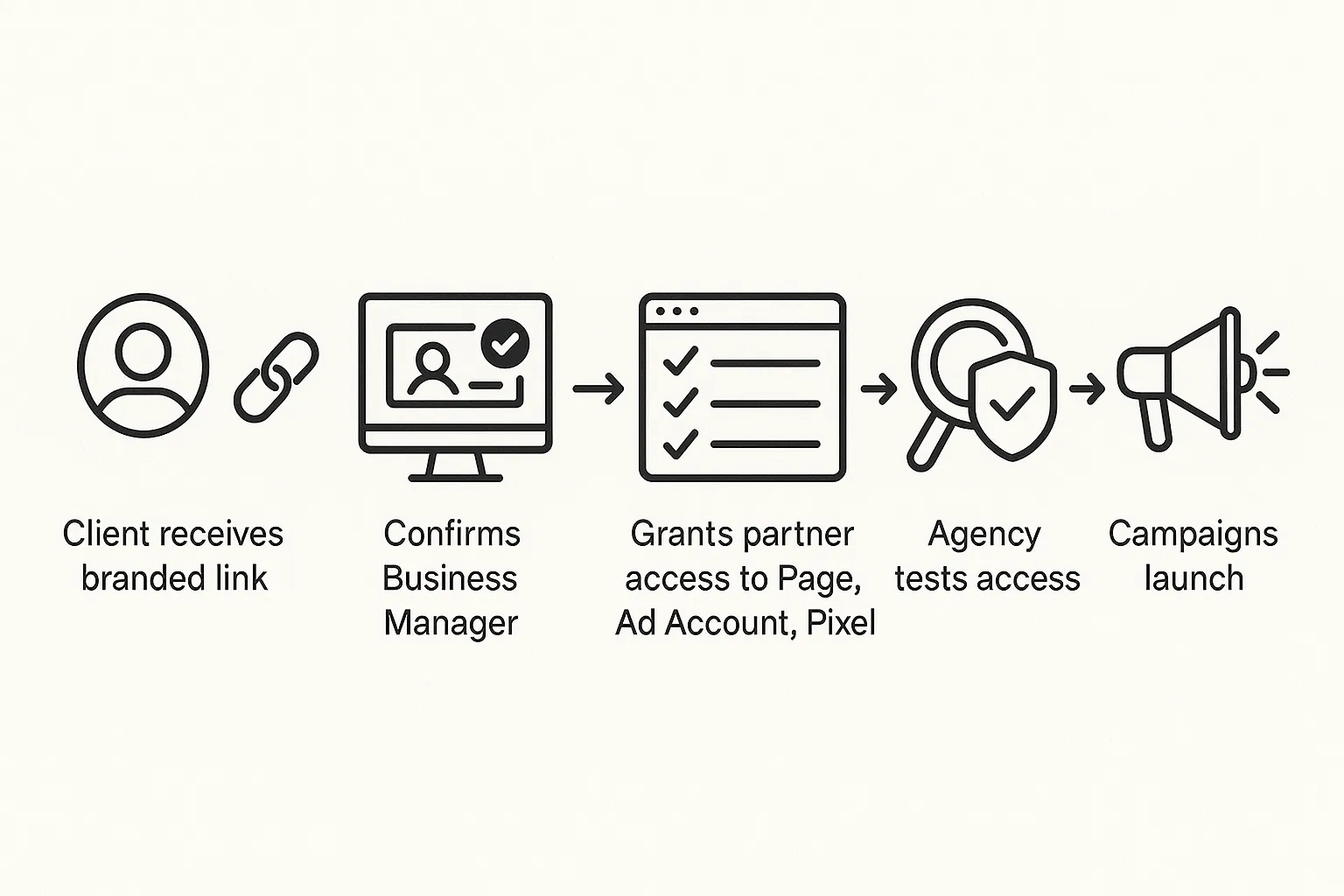
Connexify gives agencies and service providers a single, branded onboarding link that captures the exact assets and permissions you need, across platforms. Clients grant secure access through a smooth guided flow, which eliminates manual steps and shortens onboarding time from days to seconds.
- One link client onboarding with a branded experience
- Supports multiple platforms so Facebook Business Manager is handled alongside other tools in one pass
- Customizable permissions and white label options for agencies
- API and webhook integrations to push approved access and IDs into your systems
- Secure data handling, user friendly dashboard, no installation required
- 14 day free trial
See how it works and book a demo at Connexify: https://www.connexify.io
FAQ
Is Facebook Business Manager the same as Meta Business Manager? Yes. Facebook rebranded it to Meta Business Manager, but most teams still refer to it as Facebook Business Manager.
Do I need full admin of the client’s Business Manager? Usually no. The cleanest approach is being added as a Partner and assigning only the assets and toggles you need. Ask for full control only if your scope requires it.
Can we start without a Business Manager? You can create a Business ad account in your own Business Manager and run for the client, but ownership and billing will not live with the client. Best practice is to set up the client’s Business Manager and keep asset ownership there.
What if the client does not have a Pixel or Catalog? Create them under the client’s Business Manager, then assign your agency access. Avoid creating core assets under your agency’s Business Manager.
Who should own billing? If the client funds the account, their Business Manager should own the ad account and payment method. If your agency fronts spend, document credit limits and repayment terms in your MSA.
Ready to remove access friction from every onboarding? Create a branded, one link flow with Connexify and move from days of back and forth to seconds. Start your 14 day free trial or book a demo at https://www.connexify.io