Facebook Ad Manager Login Issues: Fixes That Work
01/18/2026

When you’re trying to launch, optimize, or report on paid social, a failed Facebook Ad Manager login (now Meta Ads Manager) is not a small inconvenience. It blocks spend changes, delays creative testing, and creates the worst kind of agency moment: “we’re ready to go, but we can’t get in.”
Below is a practical, no-fluff troubleshooting guide for the most common Meta Ads Manager login issues, including fixes that work in real agency environments (multiple profiles, partner access, 2FA enforcement, and messy client identity setups).
First: confirm it’s a login problem (not an access or outage problem)
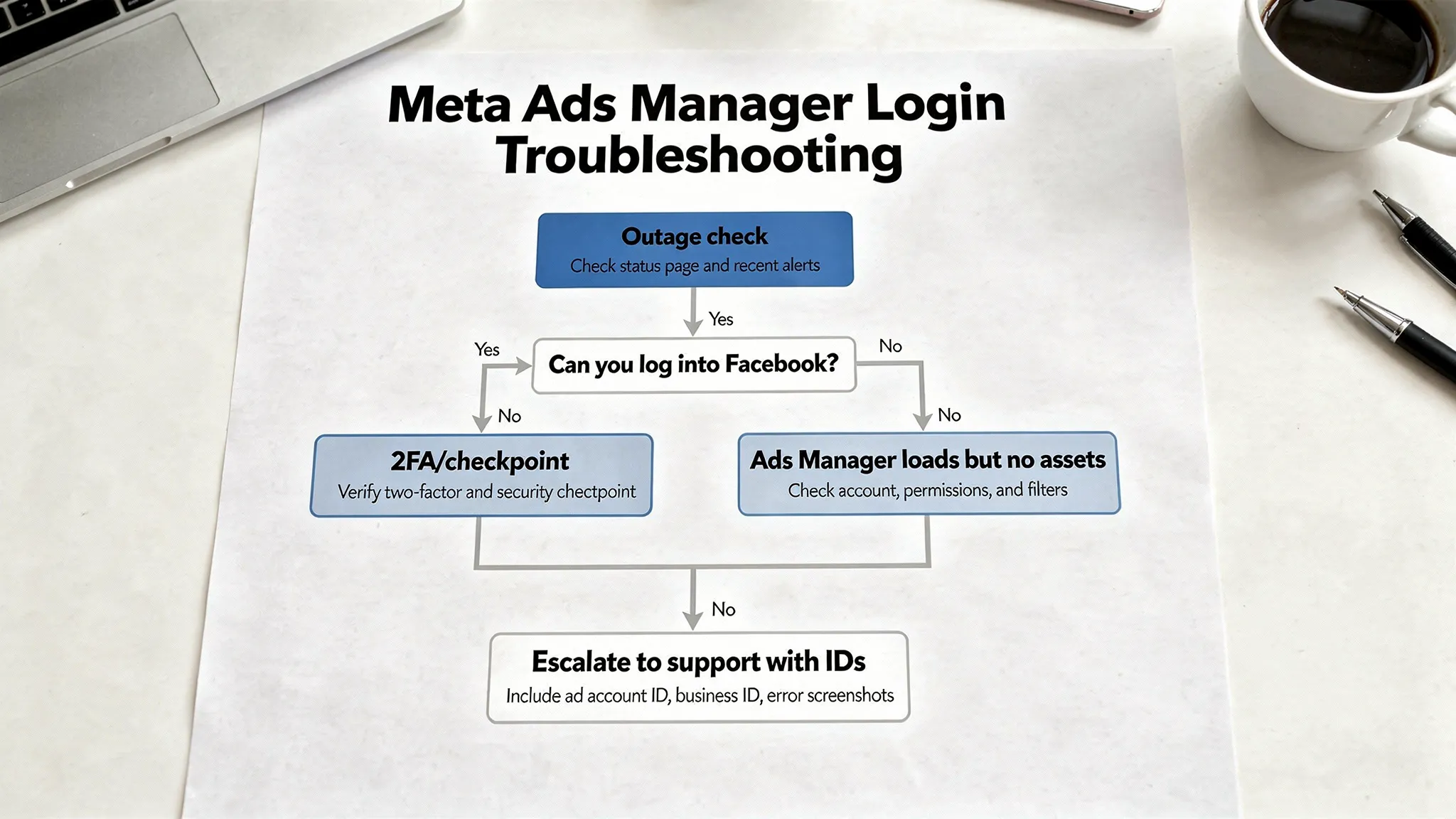
Before you reset passwords or open support tickets, validate which of these you’re actually dealing with:
- Platform outage or partial degradation: Login works for some users, pages time out, Business Suite loads slowly, or assets fail to populate.
- Authentication issue: You cannot authenticate at all (wrong password, 2FA loop, checkpoint, “something went wrong,” error codes).
- Access issue: You can log in to Facebook, but Ads Manager is empty, missing ad accounts, or you see “You don’t have permission.”
Meta does experience service incidents. If multiple teammates cannot access Meta tools at the same time, check the Meta Business Help Center for any service updates and try again later before making account changes that can create more friction.
Common Meta Ads Manager login issues (and the most reliable fixes)
Use this table as a fast triage map. Then jump to the matching section for step-by-step actions.
| Symptom | Likely cause | Fix that usually works | Typical time to resolve |
|---|---|---|---|
| “Wrong password” but you’re sure it’s right | Saved credentials, password changed on another device, SSO confusion | Reset password, then log in from a clean browser profile | 5 to 20 min |
| Stuck in a 2FA loop or codes never arrive | Authenticator mismatch, SMS delays, client using old phone number | Use recovery codes, update 2FA method, try authenticator instead of SMS | 10 to 60 min |
| “We noticed unusual activity” / checkpoint | New device, VPN, travel, rapid logins | Complete security checkpoint, confirm email/phone, reduce VPN use | 10 to 60 min |
| Ads Manager opens but shows no ad accounts | Logged into the wrong profile, wrong Business Portfolio, or no permissions | Switch profile/portfolio, confirm access in Business Settings | 5 to 30 min |
| Constant redirect to Business Suite or blank screen | Cookie corruption, blocked scripts, browser extension interference | Clear cookies for Meta domains, disable extensions, try incognito | 5 to 15 min |
| “Account restricted” / “Ad account disabled” messages | Policy or payment issue, integrity flags | Review Account Quality, resolve billing, then appeal if needed | Hours to days |
Fix 1: you’re logged into the wrong Facebook identity (yes, this happens constantly)
Meta login problems are often “identity context” problems.
In 2026, many users have multiple ways to access Meta business tools:
- Multiple Facebook profiles (personal profile plus additional profiles)
- Multiple Business Portfolios (formerly Business Manager structures)
- Multiple Pages and ad accounts tied to different ownership entities
What to do:
- Log out completely.
- Log back in and immediately verify which profile you’re using.
- In Meta Business Suite or Business Settings, switch to the correct Business Portfolio.
If Ads Manager loads but looks empty, assume you’re in the wrong business context before assuming your access was removed.
Fix 2: clear corrupted cookies and kill extension conflicts (the highest ROI “boring” fix)
A surprising percentage of Ads Manager login failures come down to a broken browser state.
Common culprits:
- Corrupted cookies for Facebook or business domains
- Aggressive privacy settings
- Ad blockers, script blockers, privacy extensions
- Enterprise security tools that rewrite requests
What to do (fastest path):
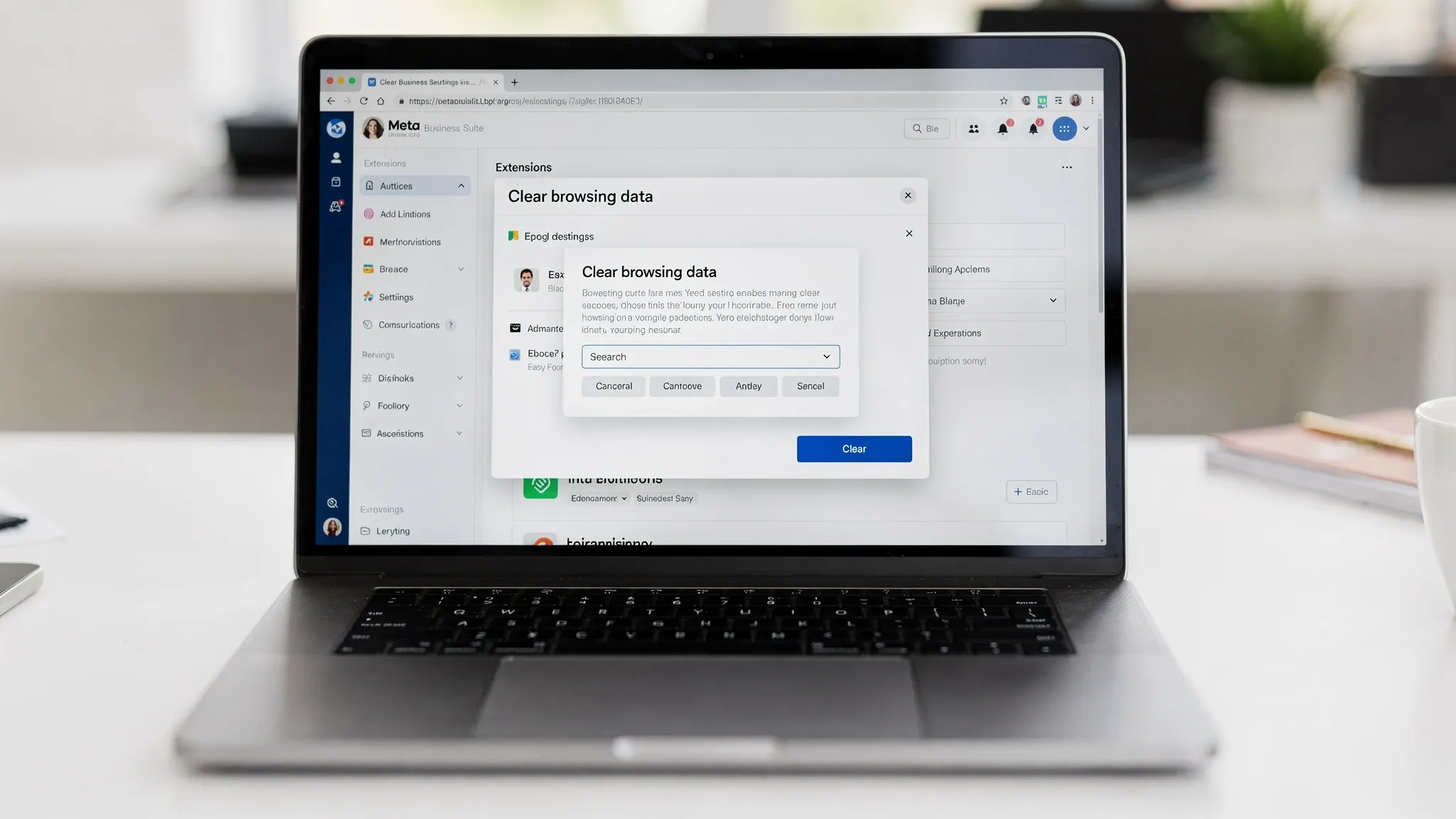
- Open an incognito/private window and try logging in.
- If it works in incognito, disable extensions one-by-one in your normal browser.
- Clear cookies and site data for Meta-related domains (Facebook and business endpoints), then restart the browser.
If your agency uses managed devices, test on a second browser (Chrome vs. Edge vs. Safari) to quickly isolate a device policy issue.
Fix 3: handle the 2FA loop (and avoid making it worse)
Two-factor authentication issues are a top cause of “I can’t log into Facebook Ad Manager” tickets.
Typical 2FA failure patterns:
- SMS codes are delayed or never arrive
- Authenticator app was moved to a new phone but not migrated correctly
- The user no longer has access to the phone number on file
- The client set up 2FA, but the agency is trying to log in from an unfamiliar device (triggering more checkpoints)
What to do:
- Prefer an authenticator app over SMS when possible (more consistent delivery).
- Use recovery codes if the user saved them.
- If you can log in on one device but not another, use the logged-in session to confirm security settings and update the 2FA method.
Important: avoid repeated failed attempts from multiple locations (especially across VPNs). That pattern often triggers additional security checks.
Fix 4: email verification is blocking password resets (use a controlled inbox workflow)
Sometimes the problem is not Meta at all. It’s that the person who owns the login cannot reliably receive the password reset or verification email.
This shows up when:
- The business used a shared mailbox years ago and no one owns it now
- A client’s IT team blocks automated emails
- You’re QA testing onboarding flows and need to validate the full email loop
For operational teams and QA automation, a programmable temporary inbox can remove a lot of friction. Tools like Mailhook let you create disposable inboxes via API and receive verification emails as structured JSON, which is useful when you’re testing login and signup verification flows without tying everything to a real employee mailbox.
Fix 5: you can log in to Facebook, but Ads Manager is “missing” (this is an access issue)
If you can authenticate successfully but cannot see the ad account, you do not have a login problem. You have a permissions problem.
The most common causes:
- You were added to the wrong asset (Page access but no ad account access)
- You were given partial access (view-only when you need manage)
- The client added you as a person instead of adding your business as a partner (or vice versa)
- You’re in the wrong Business Portfolio context
What to do:
- Ask the client to confirm you appear in Business Settings under the correct people/partners list.
- Confirm you have access to the specific ad account (not just the Page).
- Validate the role level matches your job (analyst vs media buyer vs admin).
If you need a thorough, client-ready access checklist (IDs to collect, which assets to request, and the clean partner-access method), you can reference Connexify’s existing guide: Meta Ads Manager access setup.
Fix 6: checkpoints and “unusual activity” warnings (especially with VPNs)
Meta will sometimes block or challenge logins that look risky. This often happens in agency environments:
- Multiple team members log in from different locations
- A VPN endpoint changes frequently
- A new device logs in right after password changes
- Client and agency logins bounce between countries
What to do:
- Pause and complete the checkpoint fully (confirm email, phone, identity prompts).
- Stop switching networks while you troubleshoot (pick one stable connection).
- If you must use a VPN, use a consistent endpoint while onboarding and verifying access.
From a governance standpoint, the best long-term move is to avoid any workflow that requires logging in “as the client.” Use named user access and partner sharing instead.
Fix 7: “Account restricted,” “ad account disabled,” or Business verification roadblocks
These errors can look like login failures because they prevent you from doing anything productive once you’re inside.
Common roots:
- Payment method failures
- Policy enforcement on the ad account
- Business verification or identity verification requirements
- Compromised account signals
What to do:
- Check the account’s status in Meta’s business tools and resolve the underlying compliance or billing issue first.
- If you need to contact Meta, prepare a clean evidence bundle (details below).
If this is recurring across clients, treat it as an onboarding quality issue: verify billing readiness, confirm verified ownership, and enforce 2FA before you promise launch timelines.
What to capture before you escalate (so support does not bounce you)
If you do need to open a support case, vague descriptions like “can’t log in” are rarely enough. Collect identifiers and reproducible steps.
Capture the following:
- Business Portfolio ID (and the legal business name shown)
- Ad Account ID
- The profile email/phone tied to the login
- Exact error message text and the URL where it appears
- Timestamp, timezone, and device/browser details
- Screenshots of the error and any checkpoint prompts
This reduces back-and-forth and increases your odds of getting a real resolution instead of generic troubleshooting scripts.
Agency prevention: stop treating “login” as an onboarding task
If your delivery depends on clients sharing passwords, your agency will keep having “Facebook Ad Manager login issues” forever. The fix is structural: design onboarding around scoped access and identity governance.
A prevention-first standard looks like this:
- Client owns the assets (Business Portfolio, ad account, Page)
- Agency is added via partner access with least-privilege permissions
- All users are named, with 2FA enforced
- Asset IDs and permission scopes are captured once, then reused
That last step is where teams usually break down, especially at scale. Information lives in email threads, Slack messages, and random docs, and every new campaign starts with “can you send me the login again?”
Where Connexify fits (without making onboarding another project)
Connexify is built to streamline client onboarding for agencies and service providers using a single, branded onboarding link. Instead of chasing logins and piecing together access across tools, you can route clients through one secure flow to set up account access and permissions across supported platforms.
Practically, this helps prevent “login issues” that are actually process issues:
- No more password-sharing as a default
- Faster access setup (from days to seconds, when the client completes the flow)
- A consistent, branded client experience that reduces confusion
- A clearer internal record of what was requested and granted
If you want to reduce Meta launch delays without building custom internal tooling, Connexify offers a 14-day free trial and a demo option on the site.
A realistic “fix order” when you’re under time pressure
When spend shows are waiting, sequence matters. Here’s the most reliable order of operations agencies use to resolve Meta Ads Manager login incidents quickly:
- Validate outage vs. user-specific issue (teammate test, incognito test).
- Confirm identity context (right profile, right Business Portfolio).
- Remove browser friction (cookies, extensions, alternate browser).
- Resolve 2FA/checkpoint cleanly (avoid repeated attempts).
- If Facebook login works but assets are missing, switch to permissions troubleshooting.
- If restricted/disabled, pivot to billing/compliance and support escalation.
The bottom line
Most “Facebook Ad Manager login” problems are fixable in minutes once you identify the category: browser state, identity context, 2FA, access permissions, or enforcement.
The bigger win is preventing the chaos that makes these issues frequent. If your onboarding process still relies on credential collection, you’re going to keep seeing the same failures in different forms. Moving to a partner-access model, plus a single, trackable onboarding flow, is how smart agencies reduce Meta friction and protect time-to-launch.