Client Asset Library Setup: Naming, Folders, and Owners
02/15/2026

When a new client signs, most agencies rush to “get access” and “get creatives.” What quietly slows everything down is the missing middle layer: a client asset library that makes files, links, and ownership obvious.
Without it, teams burn hours on Slack archeology (“Where’s the logo?”), ship the wrong version (“Is this the approved landing page copy?”), and create security risk (shared drive links, random editors, credentials living in PDFs). With it, onboarding gets faster, delivery gets cleaner, and offboarding becomes painless.
This guide gives you a practical, agency-ready setup for client asset library naming, folders, and owners, plus templates you can copy.
What a “client asset library” is (and what it is not)
A client asset library is the canonical place to store and retrieve:
- Brand foundations (logos, fonts, brand guidelines, tone of voice)
- Creative source files and exports (design, video, copy, ad variations)
- Channel and measurement artifacts (UTM rules, tracking plans, pixel IDs, tag notes)
- Web and product assets (landing pages, wireframes, CMS notes)
- Approvals and governance (final approvals, licenses, usage rights)
It is not your project plan, your PM tool, or your reporting dashboard. Those can link to the library, but the library’s job is simple: make assets easy to find, hard to misuse, and safe to share.
The three rules that prevent asset chaos
Most “messy drive” problems are not tool problems. They are governance problems. These three rules fix the majority of issues.
Rule 1: One library per client, one canonical location
Pick a single source of truth (Google Drive, SharePoint, Dropbox, Box, a DAM, or a locked-down Notion/Confluence space for documents). Then make everything else point to it.
A common failure mode is “creative in Drive, brand in Dropbox, approvals in email, screenshots in Slack.” That is how duplicate versions and missing context happen.
Rule 2: Naming beats searching
Search is helpful, but inconsistent naming creates ambiguity and false confidence. If two files look plausible, your team wastes time verifying which is correct.
A naming standard turns your library into a system that survives scale, turnover, and client-side chaos.
Rule 3: Ownership beats good intentions
If “everyone can upload” and “nobody is accountable,” the library decays. Every top-level folder needs an owner, and every asset type needs a lightweight workflow for:
- Draft
- Review
- Approved
- Archived
Naming convention: a simple standard your team will actually follow
The best naming conventions share two traits:
- They encode the minimum metadata needed to identify the right file quickly.
- They are short enough that people use them.
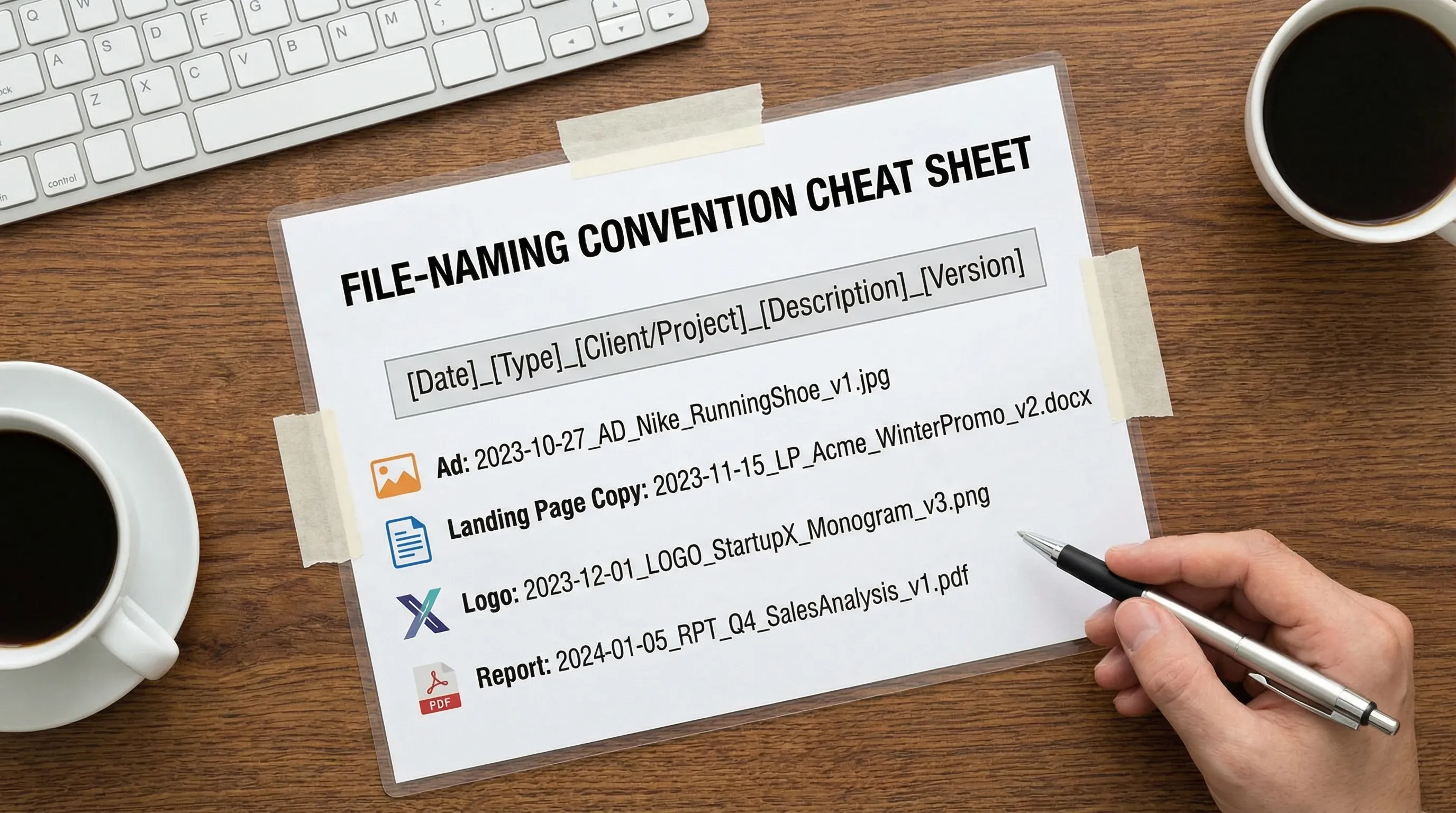
Recommended file naming formula
Use this format for most creative and deliverables:
client_project-or-campaign_channel_assettype_description_YYYY-MM-DD_v01_ownerinitials.ext
Example:
acme_spring-promo_meta_ad-creative_square-1_feature-1_2026-02-15_v03_jd.png
Naming rules (non-negotiables)
- Use lowercase and hyphens for readability.
- Use ISO dates (
YYYY-MM-DD) so sorting works. - Use
v01,v02,v03for versioning (avoid “final-final-2”). - Put the most important distinguishing info early (campaign, channel, asset type).
Here is a copy-ready naming guide you can paste into your onboarding docs.
| Asset type | Naming pattern | Example |
|---|---|---|
| Logo exports | client_brand_logo_lockup_color_YYYY-MM-DD.ext | acme_brand_logo_horizontal_black_2026-01-10.svg |
| Paid ad creative | client_campaign_channel_ad-creative_format_message_YYYY-MM-DD_v##_xx.ext | acme_spring-promo_meta_ad-creative_story_offer-a_2026-02-01_v02_sf.psd |
| Landing page copy | client_campaign_web_lp-copy_variant_YYYY-MM-DD_v##_xx.docx | acme_spring-promo_web_lp-copy_variant-b_2026-02-03_v04_sf.docx |
| Reporting exports | client_reporting_channel_metric-window_YYYY-MM-DD_v##_xx.ext | acme_reporting_ga4_monthly_2026-02-01_v01_sf.pdf |
| Contracts and legal | client_legal_documenttype_YYYY-MM-DD.ext | acme_legal_msa_2026-01-28.pdf |
Versioning: when to increment vs when to branch
Use v## for iterative improvements to the same asset.
Branch only when the creative is meaningfully different:
..._message-a_...and..._message-b_......_format-square_...and..._format-vertical_...
This keeps A/B testing organized without exploding your file tree.
Folder structure: a client-ready template (with intent)
Folder structures fail when they are either too generic (“Creative”) or too specific (“Meta Ads Q1 2024 Old Campaigns Final”). The sweet spot is:
- Stable top-level categories (consistent across clients)
- A small number of predictable subfolders
- Owners assigned at the top level
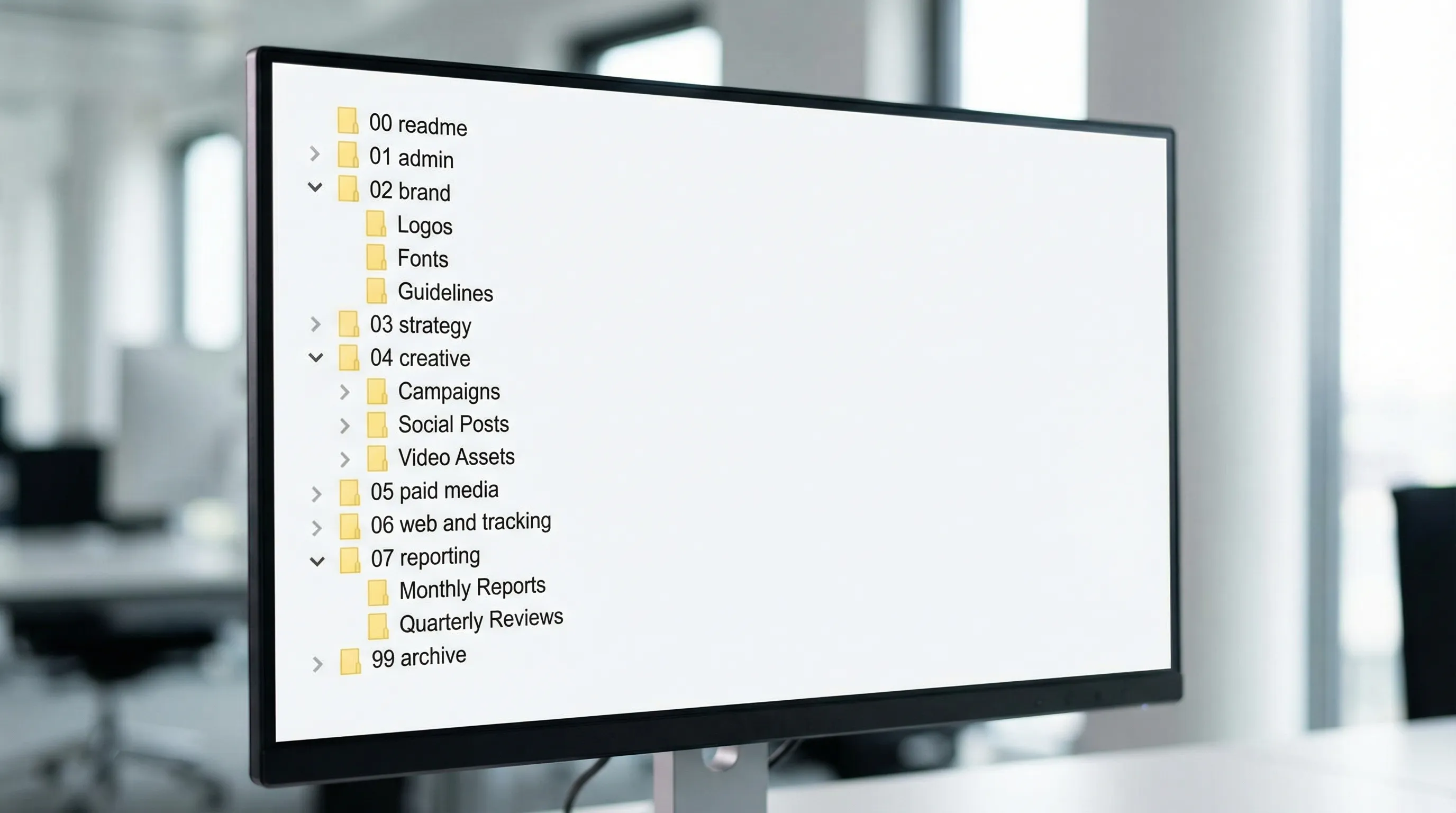
Recommended top-level folder tree
Use numeric prefixes so folders stay in order:
00_readme-start-here01_admin-and-access02_brand03_strategy-and-briefs04_creative-production05_paid-media06_web-and-tracking07_reporting-and-insights99_archive
What goes where (and who owns it)
| Folder | What belongs here | Primary owner | Typical permissions |
|---|---|---|---|
00_readme-start-here | Library map, links to key docs, “how to request changes” | Agency PM or Ops | View for most, edit for owner |
01_admin-and-access | Key contacts, asset IDs, access notes, governance policies | Agency Ops | Restricted (need-to-know) |
02_brand | Logos, fonts, brand guidelines, approved imagery | Client brand owner | Edit limited, view broad |
03_strategy-and-briefs | ICP notes, messaging, briefs, win definition | Account lead | Edit limited |
04_creative-production | Source files, working drafts, review rounds | Creative lead | Edit for creators |
05_paid-media | Ad build notes, platform exports, audience docs | Paid lead | Edit for paid team |
06_web-and-tracking | Tagging plan, GTM notes, pixel details, LP builds | Analytics or web owner | Restricted, least privilege |
07_reporting-and-insights | Reports, dashboards exports, meeting notes | Analyst | View broad |
99_archive | Old versions, deprecated campaigns, prior agencies’ exports | Ops | View-only, restricted |
Two practical tips that reduce mistakes immediately:
- Put a short
README(or a one-page doc) inside every top-level folder explaining “what goes here” and “what does not.” - Keep “working drafts” separate from “approved outputs.” If you do only one thing, do this.
Owners and accountability: a lightweight RACI that works
An asset library needs clear decision-making, not more process. Define these four roles for every client:
- Business Owner (client): ultimately accountable for brand and legal usage.
- Delivery Owner (agency): accountable for day-to-day accuracy and speed.
- Asset Librarian (agency): maintains structure, naming compliance, and archiving.
- Approver (client or agency): signs off on “approved” assets.
RACI template for client asset libraries
| Task | Business Owner (client) | Delivery Owner (agency) | Asset Librarian (agency) | Approver |
|---|---|---|---|---|
| Define folder structure | C | A | R | C |
| Create library and permissions | C | A | R | I |
| Upload brand kit (logos, fonts, guidelines) | A | C | R | I |
| Enforce naming convention | I | A | R | I |
| Mark assets as “approved” | C | R | I | A |
| Archive old versions | I | A | R | I |
| Quarterly access and asset audit | C | A | R | I |
Legend: A = Accountable, R = Responsible, C = Consulted, I = Informed.
If you want this to stick, add it to your kickoff agenda and your onboarding checklist, not just your internal SOP.
Permissioning and security: keep it simple and safe
A client asset library often contains sensitive information: invoices, contracts, customer lists, tracking IDs, or product roadmaps.
Use the principle of least privilege (widely recommended across security frameworks, including NIST access control guidance). In practice, that means:
- Default to view access for broad groups.
- Grant edit access only to roles that must modify assets.
- Restrict
01_admin-and-accessand anything that includes credentials, keys, or billing. - Avoid storing passwords in documents. Use a proper password manager.
Also decide, upfront, what “client-facing” means. Many agencies keep two layers:
- A client-facing library (approved, shareable)
- An internal working space (drafts, experiments, internal notes)
Intake workflow: how assets enter the library without breaking it
A library is only as good as its intake. Here is a low-friction workflow that works for marketing agencies and service providers.
Step 1: Define the “Minimum Viable Asset Kit”
Your MVAK is the smallest set of assets required to deliver first value. It typically includes:
- Brand kit (logo formats, colors, fonts, guidelines)
- Product or service messaging doc
- Creative examples that are “on-brand”
- Access to key platforms (ads, analytics, CRM as needed)
Keep it short. Your goal is to launch, then expand.
Step 2: Tag each asset request with an owner and a due date
Clients do not ignore you because they do not care. They ignore you because the request is ambiguous.
Instead of “send brand assets,” request:
- “Upload logo SVG + PNG set to
02_brand/logos(Owner: Jamie, Due: Tuesday)”
Step 3: Verify quickly, then lock the structure
When the first upload lands, do a five-minute verification:
- Are files in the right folder?
- Do filenames follow the standard?
- Is there an approved version?
Fix it immediately. Early correction is cheap, late correction becomes rework.
How this connects to client onboarding (and how Connexify helps)
Asset library setup sits directly inside onboarding. If your client onboarding process already includes access setup, permissions, and required IDs, your asset library becomes the place where those artifacts live and stay discoverable.
Connexify is designed to streamline client onboarding for agencies through a single, branded link, including secure, multi-platform access setup and customizable permissions. Practically, teams use an onboarding layer like Connexify to:
- Collect the right access and client inputs consistently
- Reduce manual back-and-forth across platforms
- Keep onboarding moving with a smoother user journey
Then your library becomes the organized “home base” for what onboarding collects, such as brand assets, IDs, and onboarding documentation.
If you want to see how a full-service team packages and delivers digital marketing across channels, it can also help to look at how established providers describe their service lines, for example this digital marketing agency in Chennai outline of SEO, PPC, social, and web work. The point is not the exact services, it is that each service line implies a different set of assets, folders, owners, and permissions.
A 30-minute setup checklist (copy this into your SOP)
Use this when you create a new library for a new client.
- Create the folder tree and add
00_readme-start-herewith a one-page map. - Assign owners for each top-level folder.
- Apply permission defaults (view for most, edit for owners).
- Add the naming convention cheat sheet to
00_readme-start-here. - Create an
approvedvsworkingsplit inside02_brandand04_creative-production. - Create
99_archiveand document your archiving rule (for example, archive anything older than 90 days that is not part of an active campaign). - Run a “first upload” verification and fix issues immediately.
Common mistakes (and the fast fixes)
Mistake 1: “Final” files living next to drafts
Fix: Add explicit subfolders: working, review, approved, archive. Require approvers to mark the approved file, not just say “looks good” in email.
Mistake 2: No one owns the library
Fix: Make the Asset Librarian role real. It can be a PM, an ops coordinator, or a senior creative, but someone must be responsible for structure and hygiene.
Mistake 3: Random access sprawl
Fix: Review access monthly during the first quarter, then quarterly. Remove ex-contractors and old agency emails.
Mistake 4: Naming standards exist, but nobody follows them
Fix: Keep the standard short, enforce it during the first two weeks, and automate reminders in your onboarding checklist. Most teams need a brief “naming reset” once per client per year.
Frequently Asked Questions
What is the best folder structure for a client asset library? A stable, numbered top-level structure works best: start-here, admin/access, brand, strategy, creative, paid media, web/tracking, reporting, archive. Then keep subfolders shallow and consistent.
How do we choose a naming convention that people will follow? Use a formula that answers: which client, which campaign, which channel, what asset type, what date, what version. Keep it short, and include examples inside the library.
Who should own the client asset library, the client or the agency? The client should own the underlying storage account when possible (especially for long-term relationships), while the agency owns day-to-day organization via a named Asset Librarian and clear approvals.
How do we handle permissions safely without slowing the team down? Default to view access, grant edit only to owners, and restrict admin/access folders. Use least privilege and do quarterly access audits.
How does this fit into client onboarding? Treat the asset library as an onboarding deliverable: create it on Day 0, assign owners, set permissions, and use your onboarding flow to collect the initial asset kit and access details.
Turn asset setup into a repeatable onboarding step
If you are standardizing onboarding across clients, the asset library should be created the same day the contract is signed, not weeks later.
Connexify helps agencies streamline client onboarding with one branded onboarding link, secure multi-platform access setup, customizable permissions, and integrations via API and webhooks.
Start with a low-risk pilot: build your asset library template, then run one client through a single, trackable onboarding flow.
- Explore Connexify at connexify.io
- Or jump straight to the 14-day free trial and standardize your next client kickoff